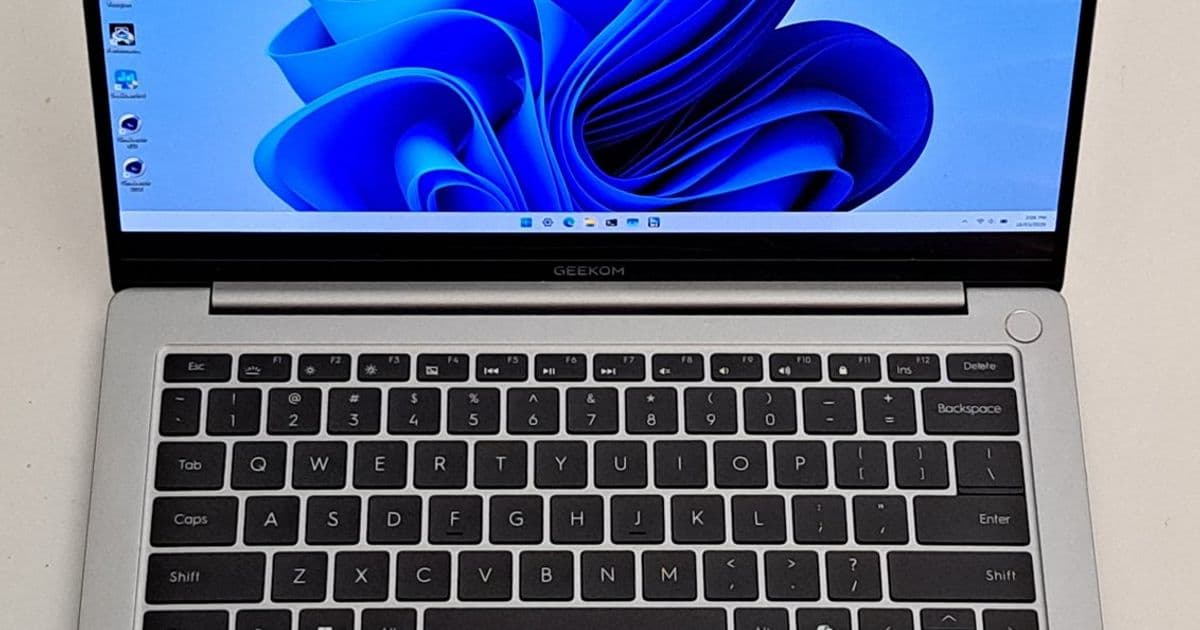
GEEKOM's first laptop venture delivers impressive portability and display quality at an attractive price point, though performance inconsistencies and limited BIOS options temper an otherwise solid offering.
Chinese computer maker GEEKOM has been selling mini PCs for about five years, and over that time the company has built a solid reputation. After reviewing several of the company's mini PCs, I've generally come away impressed with their build quality, and performance.
When GEEKOM first announced the GEEKOM X14 Pro and its big sibling the GEEKOM X16 Pro, at the time the company said they would both be powered by Intel Core Ultra (Series 2) Arrow Lake processors, but now laptops are available for purchase, it turns out the laptops actually feature older Intel Core Ultra (Series 1) Meteor Lake chips.
GEEKOM sent me a GeekBook X14 Pro to test. This laptop was provided to Liliputing for free, with no requirement that the computer be returned upon completion of the review. This review is not sponsored by GEEKOM, and the company did not modify or approve the content of this article in any way.
The model in this review features an Intel Core Ultra 9 185H processor, 32GB of RAM and 2TB of storage, but GEEKOM also offers a lower-cost model with an Intel Core Ultra 5 125H processor, 32GB of RAM and a 1TB SSD. Both models are available from Amazon or the GEEKOM store, where you can also find the 16-inch GEEKOM X16 Pro.
Here are the full specifications:
GEEKOM X14 Pro specs
CPU: Intel Core Ultra 9 185H or Intel Core Ultra 5 125H GPU: Intel Arc Graphics NPU: Intel AI Boost Memory: 32 GB; LPDDR5; 7500 MT/s Storage: 1 x M.2 2280 NVMe SSD, 2 TB or 1 TB Wi-Fi & BT: Wi-Fi 6E; Bluetooth 5.4 Ports: 1 x HDMI 2.0 2 x USB 4.0 (40 Gbps) 1 x USB Type-A 3.2 Gen1 (5 Gbps) 1 x 3.5mm headphone/microphone combo jack Fingerprint: Integrated with power key Display: 14.0 inch; OLED; 2.8K resolution; 16:10 ration; 120Hz 100% DCI-P3 color gamut; 450 Nits brightness Camera: 2 Megapixel sensor; 1080p Full HD; 2 × Digital microphones Speakers: 2 x 2W speakers; certified DTS:X Ultra Keyboard: 78 keys; adjustable backlight Battery: 72 Wh capacity* Adaptor: 65 W PD GaN Fast Charge Dimension: 12.3 x 8.5 x 0.67 inches or 311.7 x 215.4 x 16.9 mm Weight: 2.2 lbs or 0.998 kg *review unit was only 70 Wh capacity
Design & Ports
GEEKOM markets its 14 inch notebook computer as "one of the lightest laptops in its class," and also emphasizes just how thin the notebook is … although it's not quite as thin as the company claims. While GEEKOM says the laptop weighs 2.2 pounds (1 kilogram) and measures 0.23 inches thick, according to my measurements it's 12.3 x 8.5 x 0.3 inches at its thinnest point and 0.5 inches at its thickest. In millimeters, that would be 311.7 x 215.4 x 8-12mm.
However, the true depth of the laptop needs to include the feet so effectively becomes the height of the closed laptop when lying flat. Overall, the depth becomes 0.7 inches (16.9 mm), which is pretty average for a modern thin and light laptop, even one that is lighter than most models with 14 inch screens.
The chassis is a magnesium alloy unibody shell finished with a multi-stage coating that is described as warm to the touch. In practice, the finish does feel pleasant and solid, though it proved less resistant to fingerprints than one might hope. The laptop's colour is best described as a silvery-grey which GEEKOM calls Titanium grey.
The laptop can be opened with a single hand, and the hinge allows the screen to be positioned at a comfortable range of angles. The ports follow convention and are on the sides of the laptop. On the left are:
1 × HDMI 2.0 2 × USB4 (40 Gbps), which also serve as power input And on the right are:
1 × USB Type-A 3.2 Gen1 (5 Gbps) 1 × 3.5 mm headphone/microphone combo jack Camera privacy shutter
Also included with the laptop from GEEKOM is a USB Type C dongle that expands connectivity with additional ports:
1 × Ethernet (1 Gb/s) 2 x USB Type-A 3.2 Gen1 (5 Gbps) 1 x HDMI 2.0 1 x USB Type C power passthrough only
Using the dongle consumes one of the two USB4 ports, which does mean sacrificing a high-speed port. This is a missed opportunity to include a faster Ethernet port such as 2.5 Gbps which is relatively inexpensive. There is also no SD or micro SD slot anywhere on the laptop nor on the included dongle, which will frustrate anyone working with portable media.
Underneath the chassis are the ventilation grilles, rubber feet, and the two side-facing speakers. These 2 W units carry DTS:X Ultra certification, and to my ears they produce a genuinely good sound with a convincing sense of space and depth for a laptop of this size. Also included with the laptop is a compact 65 W PD GaN fast charger which is designed to rapidly replenish the battery after only a brief period of connection to mains power.
Processor & Networking
The review unit came with the Intel Core Ultra 9 185H, which is a 16-core, 22-thread processor comprising six Performance cores, eight Efficiency cores, and two Low-Power Efficiency cores, with a peak boost of 5.1 GHz. This processor has Intel Arc integrated graphics with 8 Xe cores that support frequencies up to 2.35 GHz. The lower-specification configuration that is also available uses the Core Ultra 5 125H, which is a 14-core, 18-thread processor with support for boost frequencies as high as 4.5 GHz. The Intel Arc iGPU for this processor has 7 Xe cores and a top speed of 2.2 GHz. Both processors include an Intel AI Boost NPU capable of up to 11 TOPS.
Now I didn't open the laptop as the rear panel is secured by nine Torx (six-pointed star) screws that require a specialised screwdriver for removal. So, I've included a couple of images from TechPowerUp who made a teardown video of the X14 Pro as part of a review of the laptop.
Credit: TechPowerUp teardown video
Networking is handled by a MediaTek MT7922 wireless card that supports Wi-Fi 6E and Bluetooth 5.4. This card is soldered to the board, so it cannot be easily replaced or upgraded.
Memory & Storage
Both the processor and the 32 GB of LPDDR5 memory are also soldered to the board meaning they too cannot be upgraded. The memory is specified at 7500 MT/s but in practice operates at 7467 MT/s.
Credit: TechPowerUp teardown video
Storage, by contrast, is user-accessible: the Intel Core Ultra 9 model ships with a 2 TB M.2 2280 PCIe Gen 4.0 NVMe SSD, while the Intel Core Ultra 5 comes with 1 TB. Pre-installed on the storage drive is a fully licensed copy of Windows 11 Pro. It is version 24H2 OS build 26100.7171 so you will need to upgrade to 25H2 once it is offered by Windows Update.
Display & Camera
The screen is the X14 Pro's most impressive feature and arguably the best reason to consider buying one. The 14-inch OLED panel delivers a 2880 × 1800 resolution at a 16:10 aspect ratio. It runs at 120 Hz and covers 100% of the DCI-P3 colour gamut with support for HDR. At 450 nits the panel is fine for indoor conditions, however the glossy surface reflects light regardless. In direct sunlight the brightness is unlikely to be sufficient as most outdoor use cases benefit from at least 500 nits on a glossy panel.
The built-in camera offers a 2 MP sensor at 1080p Full HD resolution. On either side of the camera are dual digital microphones. The microphones perform adequately for calls and conferencing. The camera's colour output is functional but ironically, when viewed on the GEEKOM X14 Pro's OLED screen, the image can appear somewhat dull and washed out.
Keyboard & Touchpad
The GEEKOM X14 Pro has a 78-key backlit keyboard. The 14-inch form factor means there is no numeric keypad, or certain other keys found on larger layouts like Home, End and Page Up/Down. However, there is a Copilot key. With this key, and assuming you have the Copilot application downloaded and installed from the Microsoft Store, you can use it to activate Copilot. If you don't want Copilot, you can simply remove the app and remap the key under Settings.
Having the Copilot key is not to be confused with having Copilot+ or its contentious Recall feature. Whilst the laptop has an NPU, it does not meet Microsoft's minimum requirements for AI so Recall or any other Copilot+ feature can never be installed. For some, this alone is another reason to purchase.
There is very little keyboard flex so you can type firmly without feeling like you are typing on a trampoline. The key travel is moderate rather than deep, with each press registering with a positive, tactile action that makes touch typing comfortable. The "Function" key operates differently to most laptops. Rather than acting as a traditional modifier held in combination with another key, it behaves as a toggle: one press enables the top row as function keys, a subsequent press disables them. A white indicator light illuminates when function keys are active.
I was also disappointed that I could not find a key or key-combo to act as a "Print Screen" key. Consequently, I had to install an application called Greenshot and configure "Control Ins" to act as my "Print Screen" key.
The keyboard is backlit, but this is manually controlled by a dedicated key offering three brightness levels. It operates on a timer and turns off after a period of 15 seconds of inactivity. The touchpad is nice and large measuring at 4.7 x 2.8 inches (120 × 71 mm) and has a Mylar surface. It responds well to finger movements and taps as well as supporting multi-finger gestures. Physical clicks though only work in the bottom-left and bottom-right corners.
The power button, located in the top-right corner of the keyboard area, doubles as a fingerprint sensor. It functions as required once you are accustomed to it, but be warned, as a power button it has an extremely light "trigger pressure". During my initial period of using the machine, I often turned the laptop off when simply attempting to place a finger on the reader.
Processor Performance
The GEEKOM X14 Pro presents an interesting and, at times, puzzling performance picture. I've tested it under both Windows and Ubuntu, which I'll cover separately below. To gain any insight into the performance results, it is first necessary to look at how the power allocation works.
On Windows using HWiNFO while the laptop was connected to the mains, Power Limit 1 (the sustained power allocation) was set at 35 W, while Power Limit 2 (the burst or turbo allocation) was set at 45 W. Importantly, both are dynamic values meaning they can and do change "on the fly based on various factors and system policies".
However, when running on battery, both Power Limits were set lower, with PL1 at 30 W and PL2 at 35 W.
I've always expected a consistent and predictable relationship between power state and benchmark scores, so given this laptop's power limits, the resulting "on-mains" scores would be higher than the "on-battery" scores. In practice, this was not observed. Running on battery produced results that were sometimes higher than those recorded while plugged in, and vice versa.
For example, when plugged in and running 3DMark's Time Spy, monitoring the values of PL1 and PL2 showed that the turbo power (PL2) remained consistent at 45 W, but the long term power (PL1) which was initially 35 watts, dropped during the benchmark to only 30 watts by the end of the run. After a period of idleness, PL1 then recovered to 35 watts. The resultant Time Spy score whilst on-mains with these higher power limits, was 3744.
Removing the USB Type-C power cable results in the power levels immediately dropping to their on-battery settings of 30 watts for PL1 and 35 watts for PL2. Running Time Spy again showed no change in the value for PL2, but PL1 dropped to 25 watts. Like before after a period of idling, PL1 also recovered, this time to 30 watts. But, despite being on-battery and having lower power limits, the Time Spy score was higher at 3935.
This inconsistency was present across all benchmarks tested. Another example is the results from running Cinebench R23 nine times: three times on-battery and six times on-mains. Overall, the CPU Multi Core results ranged from 6520 up to 10448 on-mains, and 7111 to 9057 on battery. This resulted in the lowest score being 27% below the overall average of 8925, while the highest was 17% above it.
Further complicating this already unclear relationship between power levels and performance is a special key mapping that GEEKOM has implemented, documented in their marketing material as an "adjustable fan mode". Pressing the key combo of "Fn" and "P" will rotate the fan mode through the three options of Quiet, Balanced and Performance. However, rather than having three different fan curves with each associated with a corresponding mode, it appears that the key sequence merely shifts the place on an existing fan curve by changing the power limits. It is as simple as more power, more performance, more noise and vice-versa.
Having said that, this adjustable fan mode only appears to work when the laptop is connected to the mains. Using "Fn+P" to set Balanced fan mode results in PL1 being set to 35 W and PL 2 to 45W. When the fan mode is in Performance mode, the power limits increase, with PL1 set to 40 W and PL2 set to 50 W. But, when the fan mode is set to Quiet mode, the power limits are dropped, with PL1 set to 18 W and PL2 set to 30 W. And when the laptop is running on battery, the "Fn+P" key combo has no effect on the power limits. Both the power limits for PL1 and PL2 remain unchanged, with PL1 at 30 W and PL2 at 35 W for all three fan modes.
I only tested Cinebench R23 whilst on mains using the "Performance" mode. Because the CPU Multi Core result was 10188 and was within the range obtained when testing in Balanced mode, I decided not to test the fan mode "Performance" further.
From the testing I've performed, the actual performance observed doesn't seem to correlate with power level settings and there is yet another quirk to the understanding of the X14 Pro's performance in the section on Thermals & Acoustics below.
Prior to running any benchmarks, I first upgraded Windows 11 from version 24H2 OS build 26100.7171 to 25H2 OS build 26200.7840. HWiNFO shows the key hardware features. I started by running Crystal Dew World's CrystalDiskMark to measure the speed of the included NVMe drive. Whilst getting 7000 MB/s for sequential read and nearly 6150 MB/s for sequential write speed, the included Crucial P310 (CT2000P310SSD8) 2 TB drive just fell short of Crucial's specifications of up to 7100 MB/s for sequential read.
Next I ran the following set of benchmarks PassMark Software's PerformanceTest (general performance) UL's 3DMark (CPU and graphics) and Procyon (office productivity and AI) Maxon's Cinebench (CPU) Primate Labs's Geekbench (CPU and graphics) Unigine's Heaven (graphics) Shadow Of The Tomb Raider (gaming) I've actually run each of them several times, both on-mains and on-battery, but I've only included the results that appear to be indicative of the average for each benchmark given the fluctuations. Added to the table of results, I've included the GEEKOM GT1 Mega which I previously reviewed. While that's a mini PC without a built-in battery, screen, or keyboard, it has exactly the same processor as the GEEKOM X14 Pro. A direct comparison between the laptop and the mini PC cannot be made though, as the latter had much higher power level limits which definitely affected its performance. And just like on the GT1 Mega, all the testing I performed on the X14 Pro was using the Windows power mode set to "Best performance" as configured through Settings.
Windows GEEKOM GT1 Mega GEEKOM GeekBook X14 Pro Variance against GT1 Mega Intel Core Ultra 9 185H Intel Core Ultra 9 185H Default (PL1=45 & PL2=70) Default (PL1=35 & PL2=45) PerformanceTest PassMark Rating 8130.6 6660.9 -22% CPU Mark 33635.7 22350.0 -50% 2D Graphics Mark 895.4 789.0 -13% 3D Graphics Mark 7532.4 5851.5 -29% Memory Mark 3210.5 2710.5 -18% Disk Mark 36138.3 48464.4 25% 3DMark Night Raid Score 31719 24408 -30% Graphics score 39441 35471 -11% CPU score 15038 8820 -70% Fire Strike Score 7148 7535 5% Graphics score 7637 8260 8% Physics score 30246 18080 -67% Combined score 2723 2975 8% Time Spy Score 3993 3804 -5% Graphics score 3573 3513 -2% CPU score 11999 7173 -67% Procyon Office Productivity score 7053 5792 -22% Word score 7584 5543 -37% Excel score 5947 5560 -7% PowerPoint score 7726 7358 -5% Outlook score 7155 4256 -68% AI Computer Vision AI NPU Integer N/A 629 N/A CINEBENCH R23 CPU (Multi Core) 18875 8989 -110% CPU (Single Core) 1853 1526 -21% CINEBENCH 2024 CPU (Multi Core) 934 461 -103% CPU (Single Core) 110 92 -20% Geekbench 6 Single-Core Score 2533 2193 -16% Multi-Core Score 14032 11522 -22% OpenCL Score 39866 32455 -23% Unigine Heaven FPS 92.7 81.9 -13% Score 2335 2063 -13% Shadow of the Tomb Raider 1080p Low Preset N/A 49 N/A 1080p High Preset 41 39 -5%
The two results that stand out are the Multi Core scores for Cinebench where the laptop got less than half that of the mini PC. This demonstrates the worst case performance loss scenario caused by the lower power limits and less effective cooling solution of the laptop. Having said that, the gaming performance is not too dissimilar between the two devices. If Intel XeSS is enabled and set to Performance, then the average FPS reached 58 on the X14 Pro making it just about playable.
As mentioned, besides running the included Windows 11 operating system, I also installed Ubuntu 25.10 (Quokka) as dual boot. There were only two functions that didn't work out of the box. The first was the 'Fn P' key sequence to change the fan curve and/or power limits. The second was the fingerprint reader. I had a brief look at it, but I couldn't get it fully working. I got close, so maybe with a bit more time, it can become usable under Ubuntu.
Looking at the power levels when running Ubuntu is a much simpler, albeit possibly concerning picture. Nearly all the values returned by the command which interrogates the power capping information are implausible. Constraint 0 (which is the long term power cap or PL1) is set to 200,000,000 µW or 200 W. Constraint 1 (the burst power or PL2) is set to 115,000,000 µW or 115 W. Both these values are inappropriate for a laptop CPU like the Core Ultra 9 185H. It is also strange to see PL1 (200 W) higher than PL2 (115 W). On most devices, PL2 is higher to allow a short performance "burst" before dropping to the lower sustained PL1 value. To prevent "bursting", the values are typically just set as identical. With the above settings, PL2 will never occur, so the key setting is "max_power_uw: 45000000" under Constraint 0 which effectively enforces a maximum power limit of 45 W.
Next, I ran just the following benchmarks: Primate Labs's Geekbench (CPU) PassMark Software's PerformanceTest (CPU and memory) Unigine's Heaven (graphics) The results for Geekbench were lower in Ubuntu compared to Windows 11. The Single-Core score was 2024 and the Multi-Core score was 11115 in Ubuntu whereas they were 2193 and 11522 respectively in Windows 11. PassMark's CPU Mark score was slightly higher in Ubuntu at 22454 compared to 22359 in Windows 11. And Memory Mark was also higher in Ubuntu with 2936 vs 2710.5 in Windows 11. However, the standout difference between the two OS was Heaven scoring 85.4 FPS in Ubuntu rendered by OpenGL against 81.9 FPS in Windows 11 rendered by Direct3D11. This is yet another anomaly as normally Direct3d11 is faster than OpenGL.
Network Performance
Networking is provided by the internal MediaTek MT7922 Wi-Fi card. I measured the Wi-Fi performance over a 6 GHz network, and it reached 1.38 Gbps upload and 1.26 Gbps download which are excellent speeds. The 5 GHz band was considerably slower at around 385 Mbps upload and 364 Mbps download. The included dongle's Ethernet port was measured at 941 Mbps upload and 946 Mbps download, effectively saturating the 1 Gbps connection.
Battery Performance
GEEKOM says its laptop has a 72 Wh battery, but the review model the company sent to me had a 70 Wh battery instead. I found it interesting that the design capacity was less than the full charge capacity. Apparently, manufacturers build batteries with slightly more capacity than advertised to ensure they meet the promised rating as there can be minor variations in manufacturing.
I ran Procyon's Office Productivity battery life test which determined that the battery should last around 8 ½ hours while running basic business tasks, but performance will vary depending on how you're using the laptop. For example, I found that when running AI workloads, the battery life could be significantly shorter at around 5 ½ hours.
Thermals & Acoustics
One of the simplest tests to see how a processor reacts when under load is to run Ubuntu's stress test on all available cores. I ran a twenty minute CPU stress test on all 22 threads. Initially this produced a peak CPU temperature of 96°C which immediately caused the system to reduce clock speeds to manage heat, settling to an average of around 85°C with the maximum frequency initially dropping to 1.0 GHz before stabilising to approximately 0.9 GHz.
I repeated the same test several days later in the same environmental conditions. However, the results CPU frequency was substantially higher, as in double, for the duration of the test. At the start of this second run, the peak temperature was slightly lower at 92°C, before dropping to the same average of around 85°C. But this time, the clock speed degradation was less severe, dropping only to 1.8 GHz and then later to 1.7 GHz towards the end of the test.
Looking at the graph clearly shows the ≈ 0.9 GHz difference in CPU frequency whilst the temperature was identical during the same 100% load. This significant anomaly likely explains the inconsistency between benchmark runs, and it also could explain why there was no correlation between the power limits and results.
To look at physically where the X14 Pro gets hot, I've scanned it with a GOYOJO GH340 thermal camera. During gaming under Windows, the top-right area of the keyboard was the warmest surface point, reaching nearly 53°C. When on-mains, the 65 W charger adapter reached a similar temperature under load. The included dongle was observed to run warm during Ethernet use, measuring just over 43°C.
As for noise, when idle or under light loads, the machine is remarkably quiet at around 33 dBA. Under sustained load the fan becomes audible, reaching just over 50 dBA at its peak. The sound characteristics of the fan noise are not unpleasant as it is a consistent whooshing rather than a whining noise. However, it is noticeable in a quiet environment when running.
NPU & AI Workloads
In the spirit of AI, I vibe coded a small script to recognise an object within a set of pictures. The basic image classification pipeline consists of a set of training images labelled with bounding boxes, which can then be used to train the model, so that the trained model can then be used to classify a larger set of images. I found that training created a very high load on the CPU. Moving it to the Intel Arc iGPU produced slightly faster results than CPU-based training, with the additional benefit that the CPU remained largely free for other tasks. Running the image classification, or inference, on the NPU was also faster than running it on the CPU. This shows that the X14 Pro is a viable demonstration platform for AI tasks that do not require the scale of a dedicated discrete GPU.
WSL2
Whilst you have the option to install Linux as dual boot, if you just want to use some Linux commands with your Windows data, then WSL2 is a perfectly good choice. It works by installing a Linux kernel and related software, in a lightweight virtual machine on Windows 11. I had no problems installing Debian 13 with GNOME which, when I accessed using RDP, gave me a full desktop.
UEFI (BIOS)
Unfortunately, the UEFI (BIOS) is very limited. The first screen offers the option of "swapping the Fn and Fx key function", but I've not worked out what this means/does. Under the System Advanced Configuration option, you have the option to enable/disable RTC wake settings. You can also disable Secure Boot under the Security tab, but that might break Windows at some point and so is not advised. If you think of disabling it while installing third-party drivers in Ubuntu, it is better to enrol MOK (Machine Owner Key). Finally, under boot you can configure the boot menu. You might think for AI users that there is a key omission due to the inability to change the maximum Dynamic Video Memory Technology (DVMT). However, the latest Intel Graphics Software allows you to manually override the amount of memory allocated to the iGPU.
Warranty
GEEKOM mini PCs normally come with a 3-year warranty which is a key advantage over many Chinese mini PCs, and it's something I've praised in my reviews of the company's mini PCs. However the X14 Pro only comes with a warranty that GEEKOM describes as an "extended 2-year warranty" that "includes a 1-year early bird bonus," suggesting that the company could switch to a 1-year warranty at some point in the future.
Verdict
Buying a laptop is very much a personal purchase. It is not just about metrics like screen size, weight and performance etc, but includes subjective qualities such as how the keyboard feels, how the speakers sound. And then of course the laptop needs to meet your requirements for how it is going to be used and perhaps the most important consideration: the price.
Before reviewing the X14-PRO I wrote a list of the requirements that I typically want met before purchasing. Now having had hands-on experience including testing and working with the laptop, I've found it to perform exceptionally well for the price point. But it is not all sunshine and roses. There are a couple of major omissions from my requirements list. The first is one that could be addressed by GEEKOM and that is the lack of options in the UEFI (BIOS). The second is the relatively minor inconvenience of not having a dedicated "Print Screen" key. And the final damp squib is the processing power offered by the first gen Meteor Lake Intel Core Ultra 9 185H: it is not that powerful, it suffers from thermal throttling and the performance is inconsistent.
But having said the negatives, the positives are many and qualify this laptop as an attractive first venture by GEEKOM into the laptop market given its affordability. The model in this review featuring an Intel Core Ultra 9 185H processor, 32GB of RAM and 2TB of storage is available from the GEEKOM website or Amazon for $1,249.
I'd like to thank GEEKOM for providing a review unit.
Comments
Please log in or register to join the discussion