iPadOS 26's redesigned multitasking system gains significant usability improvements through a single dock visibility setting, bridging the gap between iPad and Mac workflows.
iPadOS 26 introduces fundamental changes to how multitasking operates, replacing Stage Manager with a comprehensive windowing system that mirrors macOS functionality. Apps can now be freely resized, overlapped, and positioned anywhere on screen—capabilities that significantly expand productivity potential. Yet for many users, the transformation from tablet to laptop-like experience becomes truly complete after adjusting one critical setting: 'Automatically Show and Hide Dock.'
Located in Settings > Multitasking & Gestures, this feature fundamentally alters how the dock behaves during active work sessions. 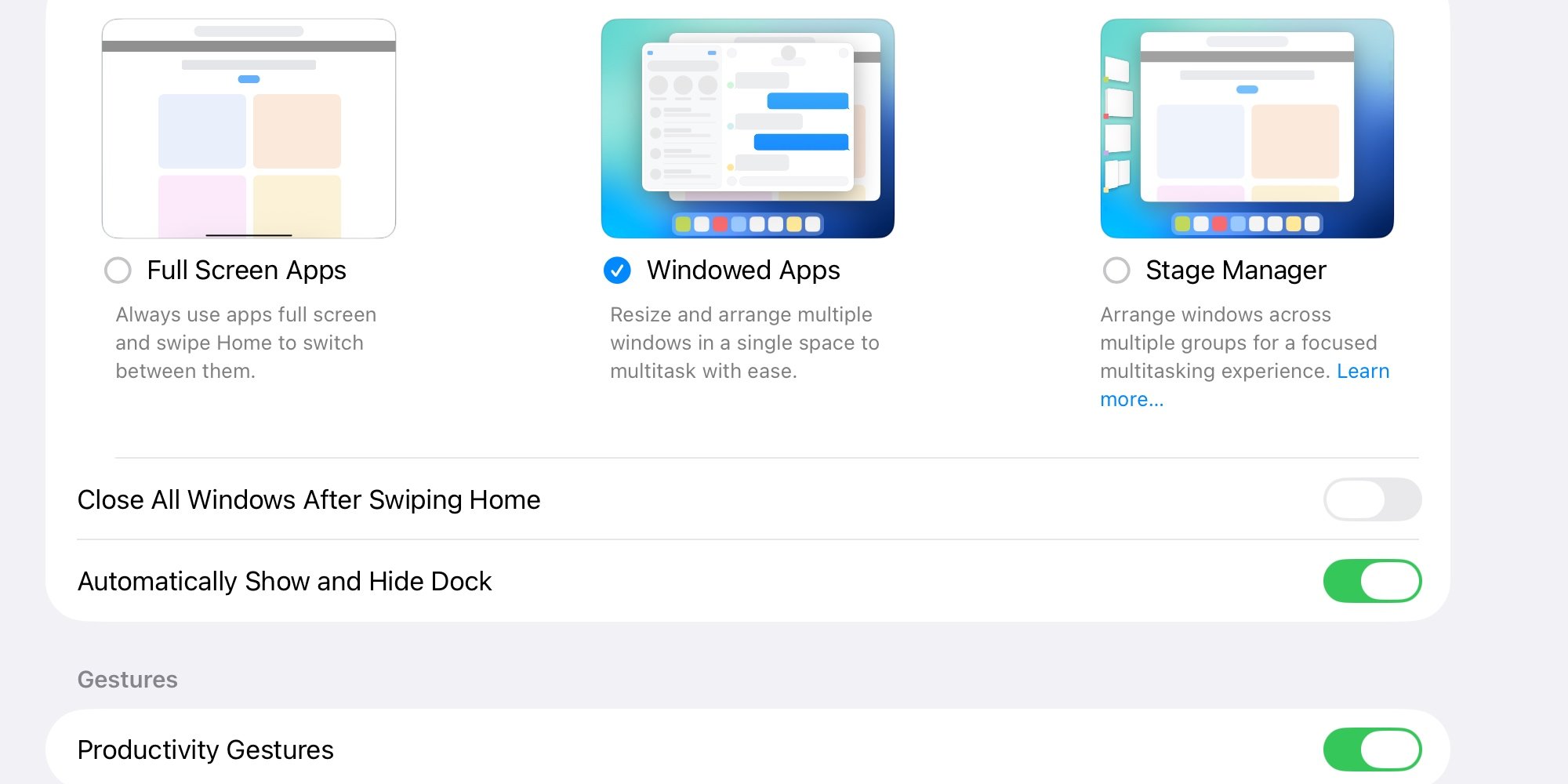
Unlike macOS where the dock remains visible by default, iPadOS traditionally hides the dock when apps are open. Enabling this setting reverses that behavior: the dock persistently appears at the bottom of the screen unless specific conditions are met. This creates a familiar anchor point reminiscent of Mac workflows, particularly valuable when frequently switching between applications.
Two simple rules govern dock visibility:
- Avoid full-screen mode: The dock disappears when apps occupy the entire display
- Respect dock territory: App windows must not extend into the bottom 10% of the screen
When these conditions are satisfied, the dock remains accessible without manual invocation. This proves especially powerful when combined with iPadOS 26's new menu bar and expanded dock capabilities. Users can now add Files app folders directly to the dock alongside applications, creating a centralized hub for documents and tools.
The practical benefits manifest in daily use:
- Reduced gesture dependency: Eliminates frequent swiping to reveal the dock
- Faster app switching: Visible app icons enable single-tap transitions
- Visual continuity: Maintains consistent interface elements across workspace states
- File management: Direct access to Files folders accelerates document workflows
After extensive testing, activating this setting while consciously avoiding full-screen mode creates a paradigm shift. Resizing windows to preserve dock visibility transforms the interaction model—the iPad begins to feel less like a tablet adapting desktop conventions and more like a cohesive computing environment. The dock becomes a persistent tool rather than an occasional visitor.
This subtle but impactful adjustment exemplifies Apple's evolving iPad philosophy: leveraging touch-first hardware while progressively incorporating proven desktop interaction models. The setting doesn't merely mimic macOS behavior—it adapts dock functionality to iPad's unique constraints, demonstrating thoughtful ecosystem integration.
As iPadOS continues evolving beyond its mobile origins, such granular controls empower users to tailor the experience toward either tablet simplicity or laptop-like efficiency. For productivity-focused workflows, enabling automatic dock visibility might be iPadOS 26's most consequential customization.

What's your experience with iPadOS 26's new multitasking features? Share your observations in the comments.
Comments
Please log in or register to join the discussion