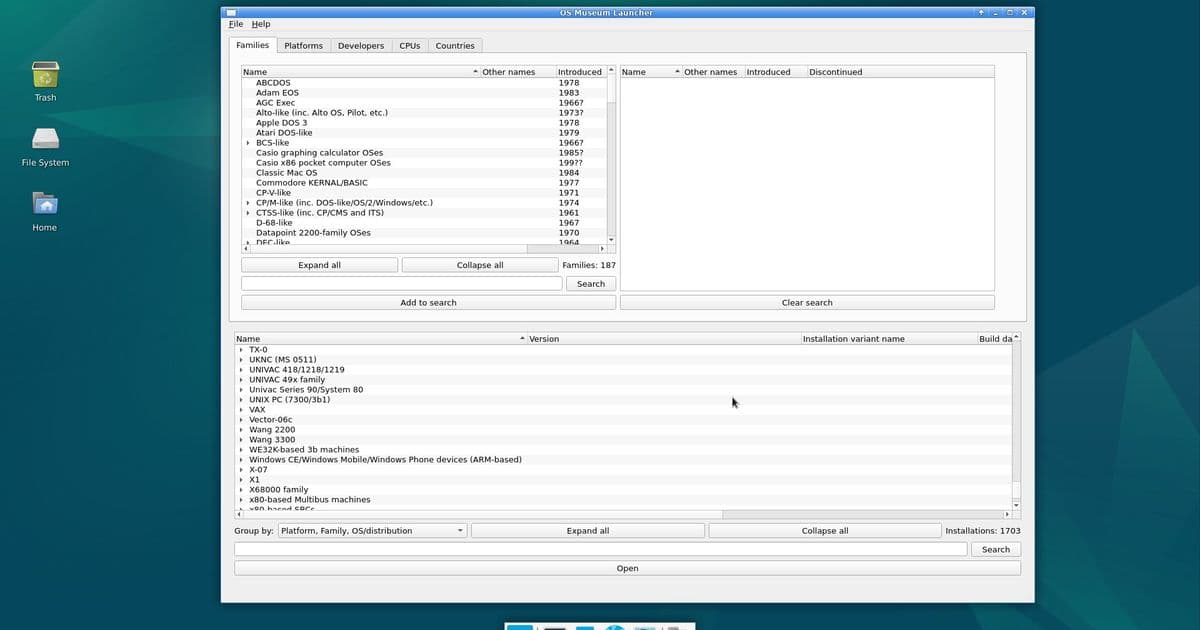
A deep look at the Virtual OS Museum, a curated Linux VM that bundles thousands of historic operating systems and applications, examining why it matters for software preservation, how it works, and what skeptics say about its approach.
Preserving Computing History: Inside the Virtual OS Museum
The surge of interest in software archaeology has turned what used to be a niche hobby into a recognizable sub‑culture among developers, educators, and museum curators. Projects that simply archive disk images are now being judged on how easily a newcomer can boot a 1970s mainframe or a 1990s desktop. The Virtual OS Museum (VOM) is a concrete response to that expectation – a single Linux virtual machine that bundles a full‑stack emulator launcher, pre‑installed snapshots of more than 570 operating systems, and a snapshot‑restore feature that lets users experiment without fear of corrupting the guest.
Why a “one‑click” museum matters
Community sentiment
- Accessibility over abstraction – Threads on /r/Emulation and Hacker News repeatedly complain that “the hardest part is getting the emulator to run, not the OS itself.” VOM flips that script by handling the emulator configuration, driver quirks, and required BIOS files behind the scenes.
- Educational value – Professors teaching operating‑system fundamentals are looking for hands‑on labs that run on any laptop. A single downloadable VM that contains, for example, a working CTSS instance or an early Unix V6 shell, removes the barrier of installing multiple hypervisors.
- Preservation credibility – Archivists note that a preserved artifact is only useful if it can be used. By providing ready‑to‑run snapshots, VOM aligns with the “use‑based preservation” model advocated by the Software Heritage initiative.
Adoption signals
- Over 1,700 installs reported in the first six months, according to the project's GitHub statistics.
- The lite version (which pulls disk images on first run) has been forked three times, indicating that other hobbyists see value in the modular approach.
- Several university courses on computer history now list the museum as a recommended resource on their syllabi.
How the Virtual OS Museum works
A hypervisor‑agnostic launchpad
The core of VOM is a launcher script written in Bash and Python that detects whether the host runs QEMU, VirtualBox, or UTM. It then starts the appropriate hypervisor with a pre‑generated configuration file. The script also:
- Selects the correct emulator version – some OSes, like the original IBM 370, only boot on QEMU 2.11 due to a regression in later releases.
- Mounts the required media – tape images for early mainframes, floppy images for the Apple II, and ISO files for classic Windows releases.
- Applies patches – a small set of community‑sourced patches fixes issues such as missing PCI devices on modern kernels.
Snapshot‑restore workflow
Each guest OS is shipped with a snapshot file (*.qcow2 for QEMU, *.vdi for VirtualBox). When a user launches an OS, the launcher creates a temporary overlay. If the user crashes the system or installs unwanted software, a single click restores the original snapshot, effectively giving the experience of a brand‑new machine every time.
Offline vs. lite editions
- Full edition – bundles every disk image (≈ 30 GB). Ideal for users with limited bandwidth or for museum installations that need to be completely self‑contained.
- Lite edition – ships only the launcher and a manifest. The first time an OS is selected, the required image is downloaded from a CDN backed by the project’s GitLab releases. This keeps the initial download under 2 GB while still offering the same breadth of content.
Counter‑perspectives
“Is this too curated?”
Some preservationists argue that a curated VM inevitably biases the narrative. By selecting which OSes to include and how they are pre‑configured, the museum may present a polished view that glosses over the messy reality of legacy hardware. Critics point out that the project’s focus on running systems can obscure the why behind design decisions that are only evident in source code or hardware schematics.
Maintenance overhead
Running a single VM that supports 250+ platforms demands constant vigilance. When QEMU releases a new major version, dozens of snapshots can break, requiring the maintainer to either pin an older version or patch the images. This workload is currently shouldered by one individual, raising concerns about long‑term sustainability.
Legal gray areas
Even though most of the images are sourced from public archives, the museum distributes them as part of a bundled download. Some OS licenses explicitly forbid redistribution, and the project mitigates this by providing download‑on‑first‑use links for those images. Nonetheless, the legal status remains a point of contention for institutions that must adhere to strict copyright policies.
The broader pattern: from archives to runnable experiences
The Virtual OS Museum reflects a shift we have been seeing across the preservation community:
- From static archives (e.g., the Internet Archive’s software collection) to interactive environments (e.g., the Internet Archive’s “Emularity” service).
- From specialist tools to consumer‑grade hypervisors – the barrier to spin up a VM on a laptop is now comparable to installing a game.
- From isolated projects to integrated ecosystems – VOM links to its GitLab repo, a YouTube channel that documents installation stories, and a Discord community where users can request new platforms.
These trends suggest that future preservation work will increasingly prioritize experience over mere storage. Projects that can automate the tedious steps of configuring emulators, handling legacy hardware quirks, and providing safe rollback mechanisms are likely to become the de‑facto reference points for educators and hobbyists alike.
Getting started
- Visit the official download page: Virtual OS Museum – Full Edition or the lighter variant.
- Follow the quick‑start guide, which walks you through installing QEMU (or VirtualBox) on Windows, macOS, or Linux.
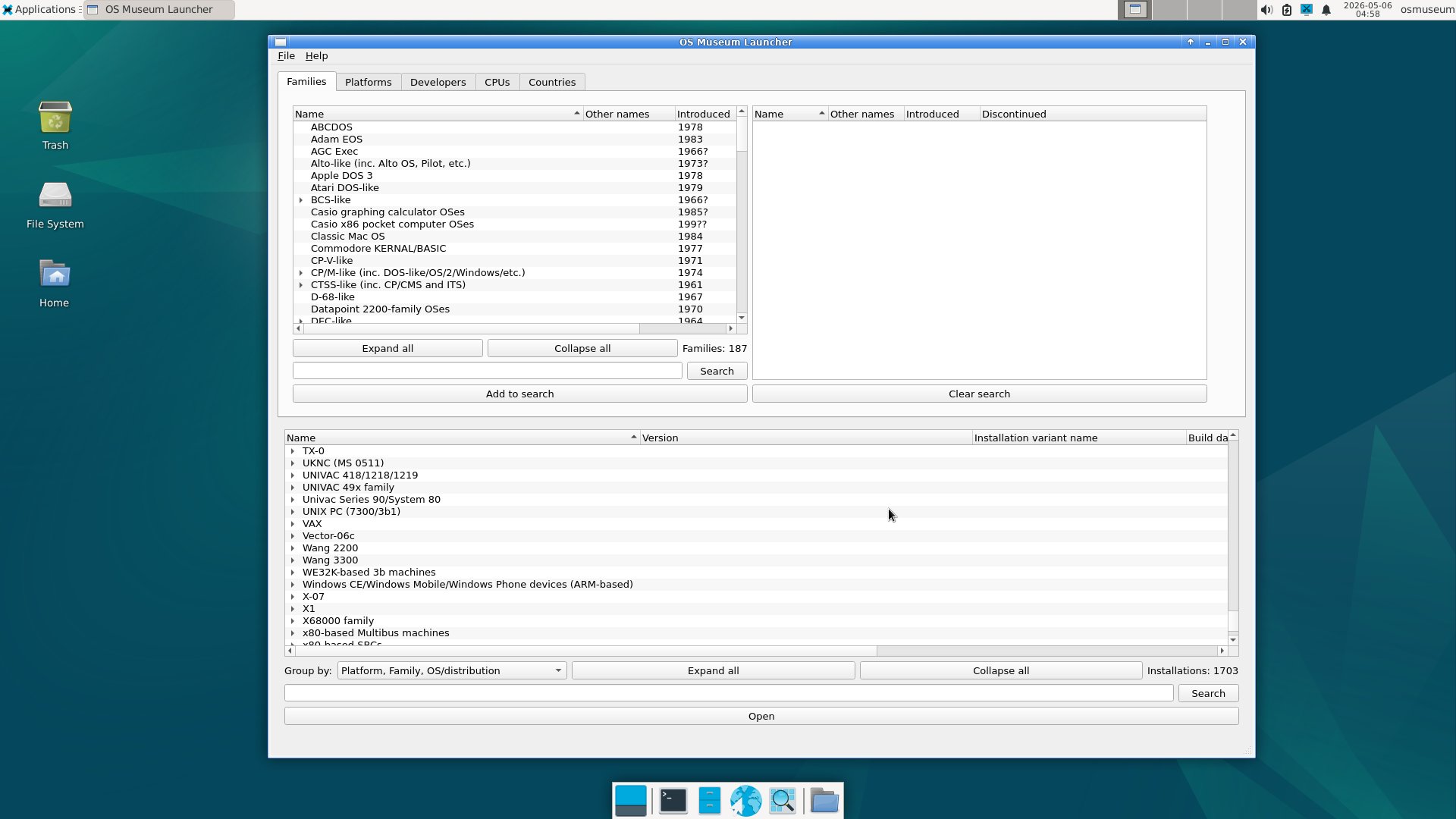
- Launch the VM, pick an OS from the catalog, and explore – the snapshot button is right‑click on the OS entry.
Looking ahead
The maintainer has hinted at a cloud‑based streaming option that would let users run the museum from a browser, removing the need for a local hypervisor altogether. If that materializes, the project could bridge the gap between preservation and accessibility even further, allowing a classroom of students to collectively explore the evolution of graphical user interfaces without any local installation.
For now, the Virtual OS Museum stands as a testament to what a single dedicated curator can achieve: a living, clickable timeline of computing that invites anyone with a laptop to step inside the machines that shaped the digital world.
Comments
Please log in or register to join the discussion