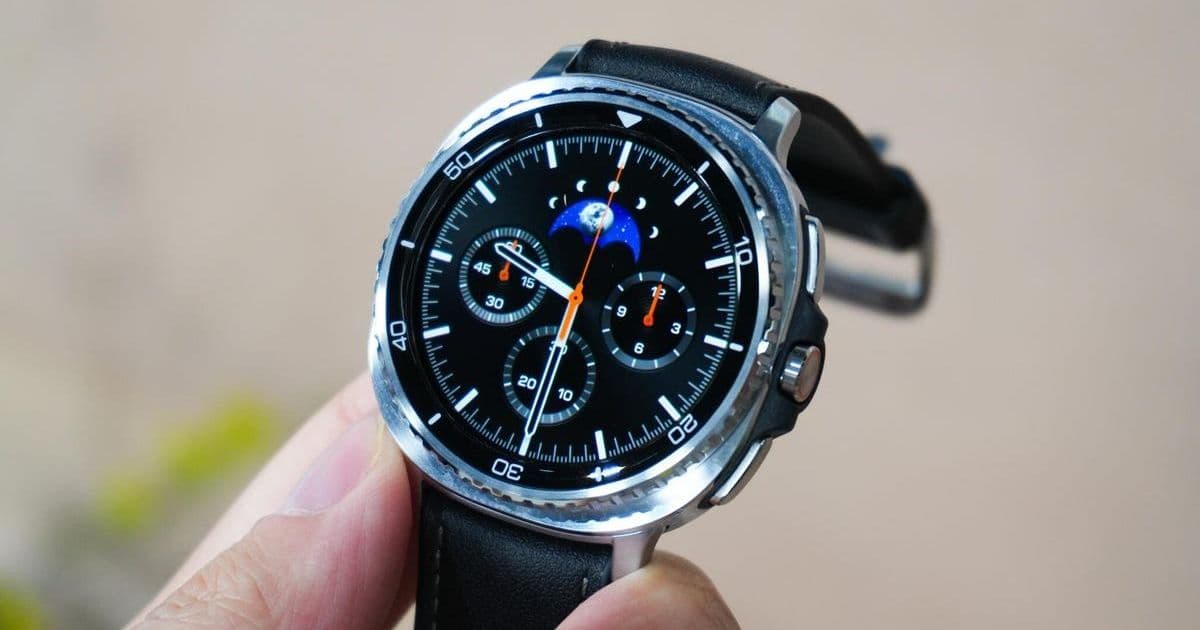
Samsung Galaxy Watch users can combat sluggish performance and rapid battery drain with a simple cache-clearing routine. This fast, manual step removes corrupted data without needing a reboot, restoring your device to peak efficiency.
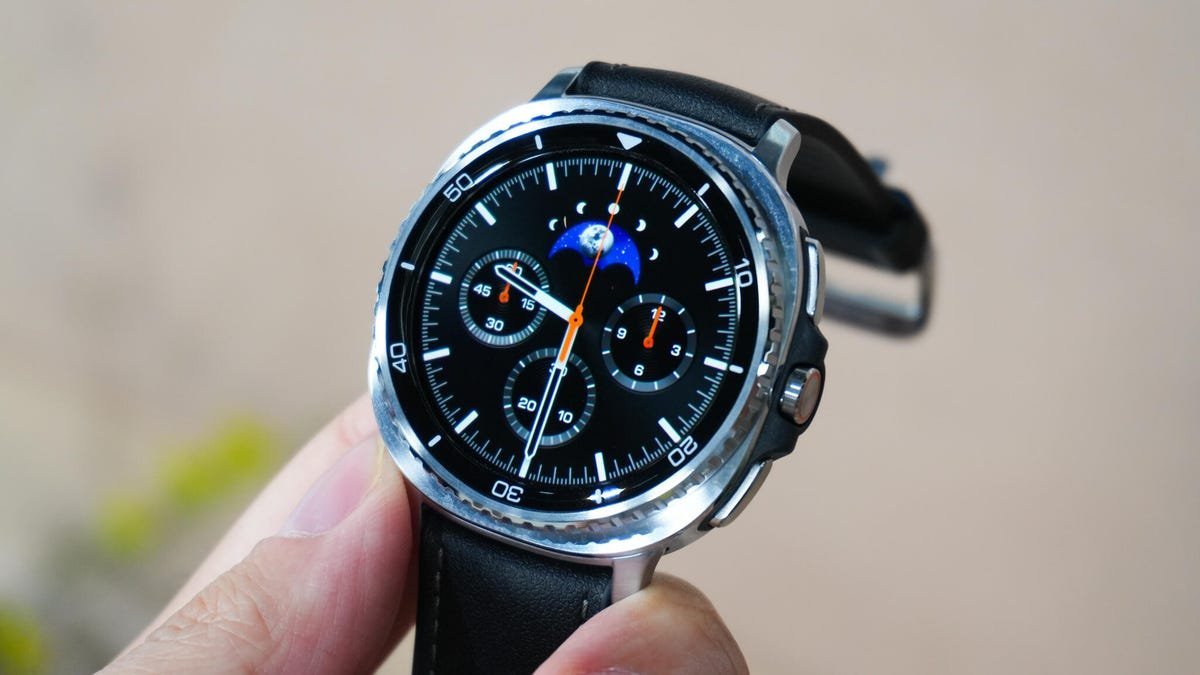
Your Samsung Galaxy Watch is a marvel of wearable technology, but like any device, it accumulates digital clutter over time. Apps running in the background, temporary files, and outdated data can bog down performance, leading to frustrating lag, frozen screens, or unexpected battery drain. Instead of resigning yourself to an upgrade, a 30-second maintenance hack—clearing the cache—can breathe new life into your watch. This isn't just a quick fix; it's a crucial practice for extending the lifespan of your tech and avoiding unnecessary spending.
Why Cache Clearing Matters: Beyond the Garbage Can Analogy
Think of your watch's cache as a temporary storage bin for frequently accessed data, designed to speed up operations. But when this bin overflows with outdated or corrupted files, it backfires. As one Reddit expert notes: "> Clearing the cache can fix battery drain, software glitches, and general sluggishness by removing corrupted or outdated files." Samsung's systems handle some optimization automatically, but manual intervention is often needed for persistent issues. A Samsung spokesperson confirms: "> The Galaxy Watch's memory management operates automatically through system-driven optimization. However, users can still take manual steps to clear the watch's memory."
Not all slowdowns call for cache clearing, though. Avoid it immediately after software updates when the watch is rebuilding cache. And remember: a simple restart won't suffice—it doesn't purge cached data like this method does.
Step-by-Step: How to Clear Your Galaxy Watch Cache
Follow these quick, no-tool-required steps to optimize performance:
Clear App Cache:
- Swipe up from the watch face to access the app drawer.
- Tap the "Recent apps" icon.
- Select "Close all" to terminate background processes.
- For targeted control, reopen "Recent apps," choose "Active in background," and manually close specific apps.
Free Up Memory:
- Open "Settings" on your watch.
- Navigate to "Device Care" > "Memory."
- Tap "Clean Now" to remove junk files and free resources.
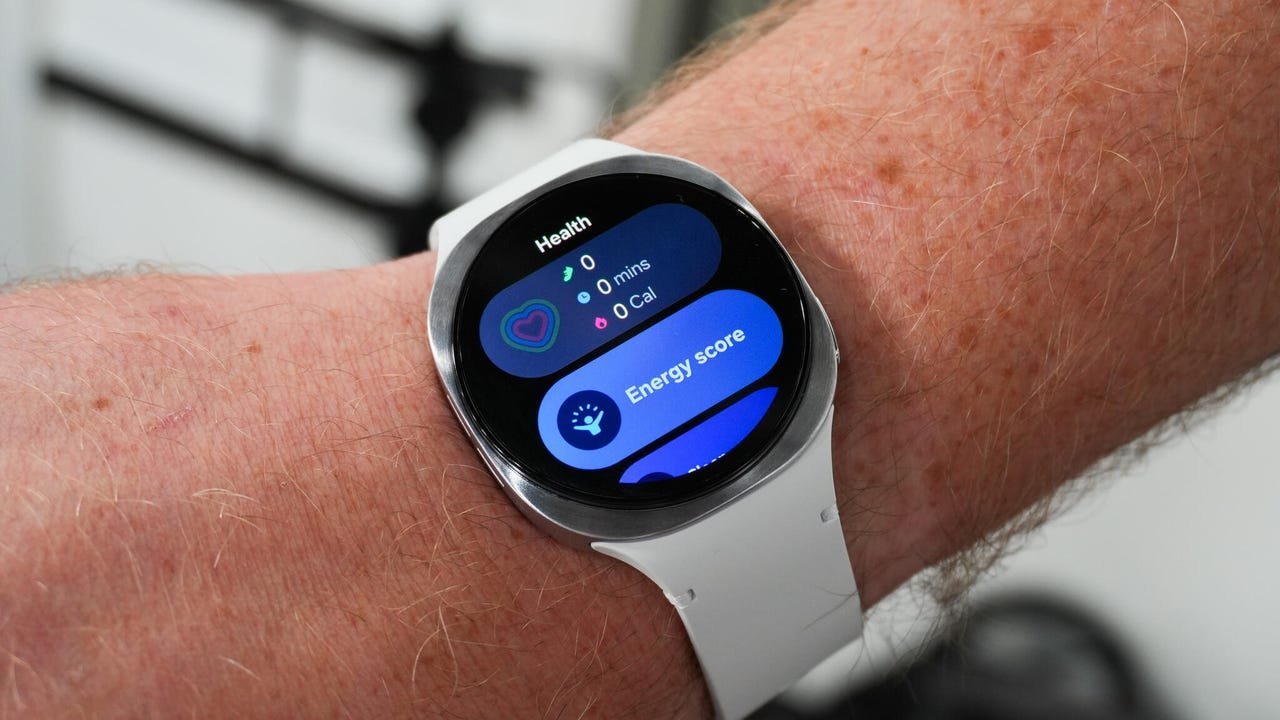 Caption: Kerry Wan/ZDNET
This routine applies universally across Galaxy Watch models. Regular use—especially after heavy app activity—can prevent minor hiccups from becoming major headaches.
The Bigger Picture: Smart Maintenance for Smarter Tech
In an era of rapid tech turnover, simple upkeep rituals like cache clearing empower users to maximize their investments. For developers and tech leaders, this underscores the importance of designing systems with user-accessible maintenance paths, reducing e-waste and enhancing user satisfaction. Make this a quarterly habit, and your Galaxy Watch will reward you with smoother performance and longevity—proving that sometimes, the smallest actions deliver the biggest impact.
Source: Own a Samsung smartwatch? This 30-second routine will keep your device running like new by Nina Raemont, ZDNET.
Comments
Please log in or register to join the discussion