
A detailed look at Andrew Smith's custom-built desk setup featuring T-slot aluminum extrusions, multiple monitors, ergonomic peripherals, and smart home integrations.
Andrew Smith's Custom Desk Setup: A Network Security Engineer's Dream Workspace
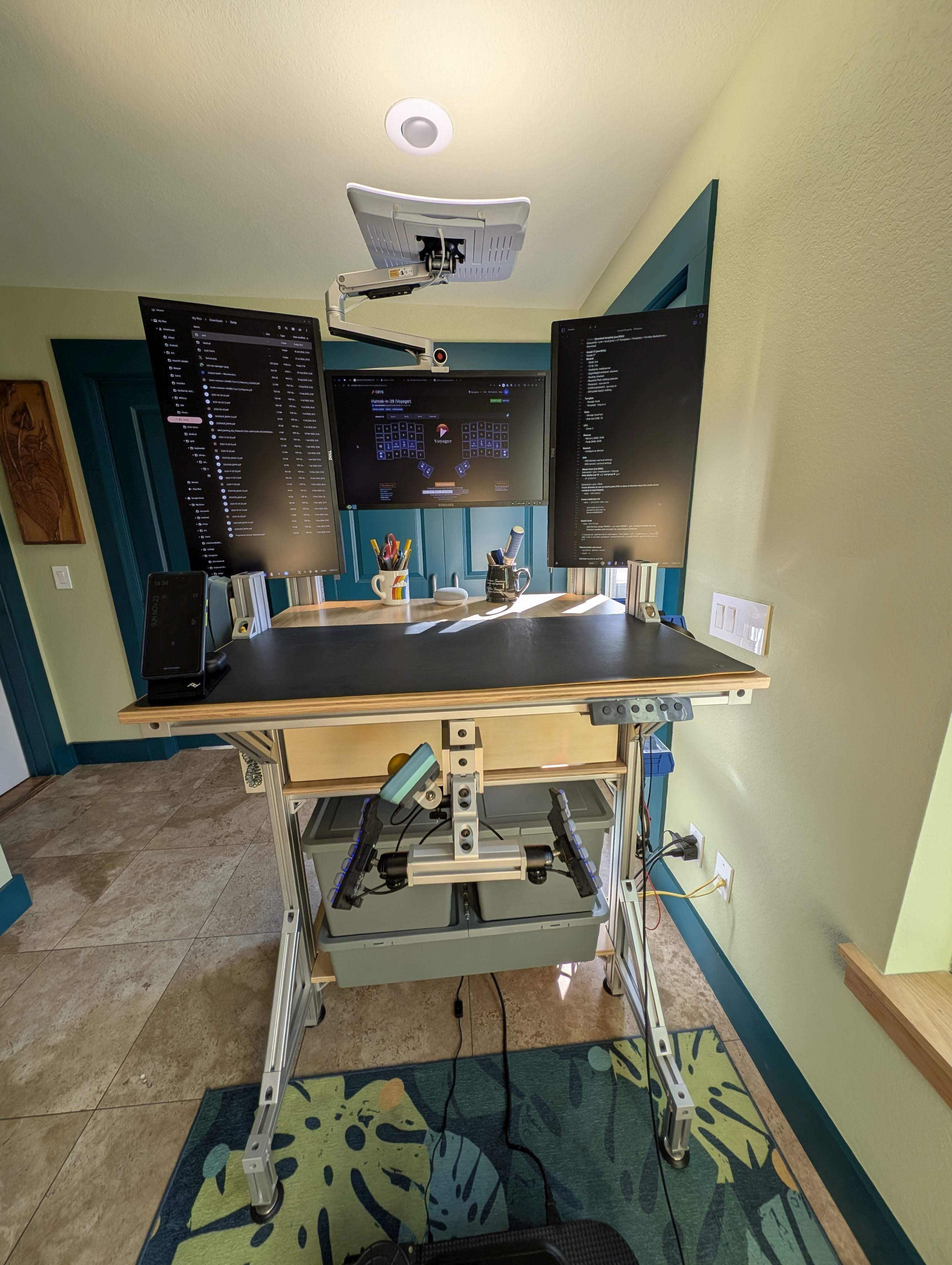
The Foundation: A Custom-Built Desk
Andrew Smith, a network security engineer for the Defense Health Agency, has created an impressive workspace that reflects both his technical expertise and his commitment to ergonomic design. Living in Fayetteville, Arkansas with his partner, Andrew worked together with them to design and assemble his desk from T-slot aluminum extrusions—a modular building system that's "like Erector Set for adults, but nonproprietary and with more options."
This choice of material has proven revolutionary for Andrew's setup. The T-slot system allows for infinite adjustability and easy mounting of virtually everything from monitors to keyboards to cup holders. The shelves are made from finished plywood, creating a sturdy yet elegant foundation for his workspace.
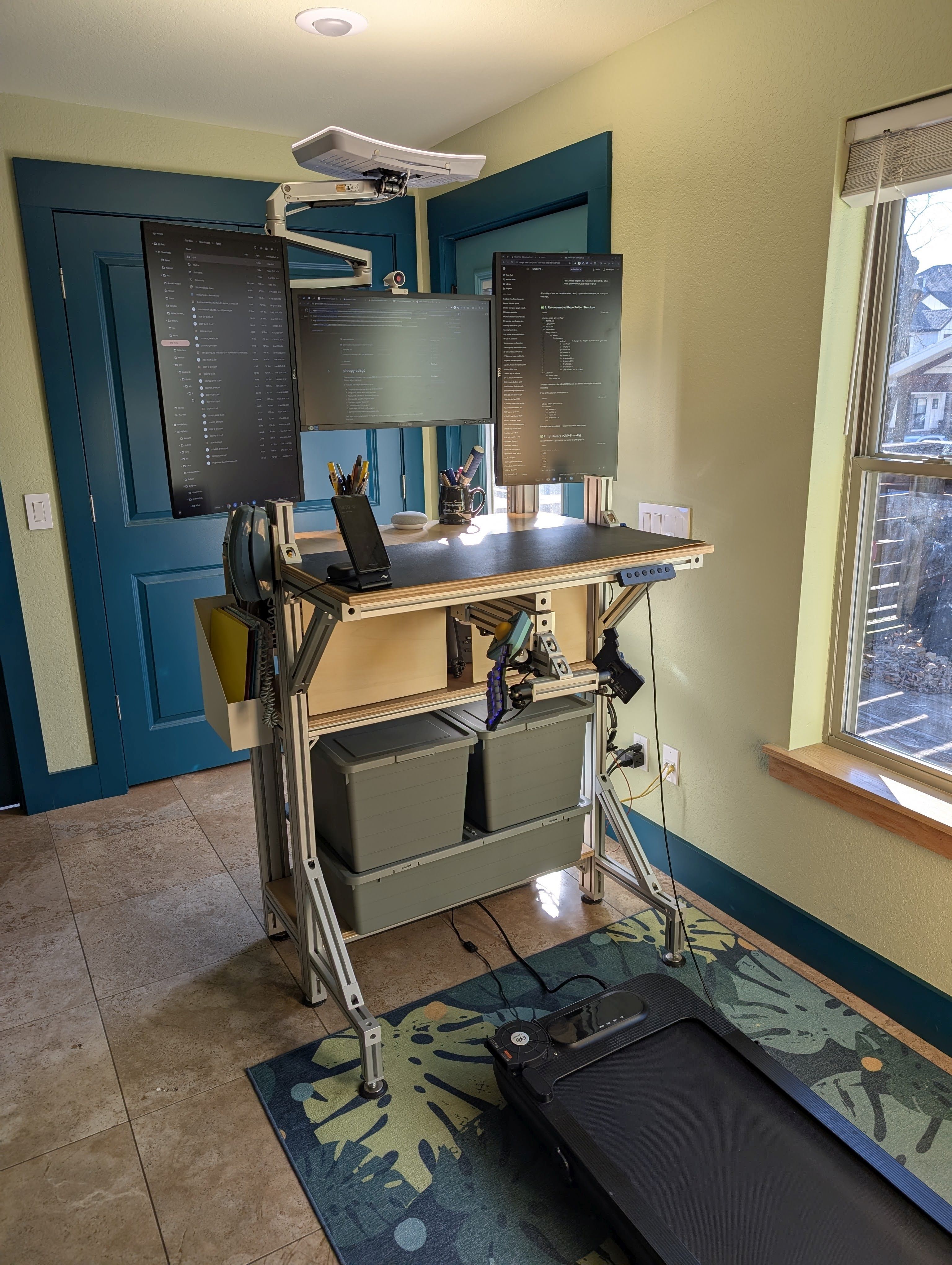
Ergonomic Evolution: From Balance Boards to Treadmills
Andrew's journey toward optimal ergonomics has been evolutionary. Initially, he would alternate between standing on a FluidStance balance board and sitting on a Håg Capisco stool throughout the day. However, both have now been replaced by an inexpensive treadmill that allows him to walk while working.
"I've found typing while walking to be easier than I'd imagined, but using my trackball mouse to be a bit more difficult than expected," Andrew explains. This challenge led him to significantly customize his mouse to increase its functionality and reduce the need for precision.
Lighting: The Unsung Hero of Productivity
Lighting plays a crucial role in Andrew's setup. He prefers bright cool white light during the day and warm white light in the evening. When his desk was positioned against a white wall, he mounted Govee Flow Plus light bars behind his monitors, with light reflecting off the wall to provide excellent background illumination.
Now that the desk isn't against a wall, he uses six Taysing LED mini indoor spotlights on a smart plug, strategically pointed at the wall, ceiling, and desktop to provide just the right amount of warm background light in the evening.
For daytime work, Andrew has mounted a Carex Day-Light Elite lamp to his desk using an adjustable Ergounion E6 monitor mount with extension arm. "Even at 50% intensity, the reflected cool white light really brightens the space," he notes. The lamp is pointed at the ceiling when not directed at him, creating a well-lit workspace that helps mitigate the effects of short, gloomy days.
Clever Cable Management
Living in a small house where the desk sits in what was intended as a dining space, tidy cable management was a priority for Andrew. He's quite pleased with how invisible the cables are from any angle.
His solution includes StarTech open-slot cable management raceway, a Monoprice under-desk cable tray, and a 36" aluminum Tripp Lite twelve-outlet surge protector that perfectly matches his desk's width. He even created custom plywood covers with magnets that attach to elevator bolts on the back of the desk, covering the only areas where cables would otherwise be exposed.
The Tech Stack: Monitors, Peripherals, and Connectivity
Andrew uses three 27" monitors—two in portrait orientation flanking one landscape. He finds portrait layout more useful for his work, which involves extensive command line usage for remotely managing Cisco, Ruckus, and Juniper network switches. "Command line, chat, email, and Word and PDF documents all usually work better in portrait," he explains.
Finding good VESA mounting hardware for the portrait monitors was challenging, but he eventually settled on VideoSecu ML411B mounting brackets that work quite well. His partner even designed and 3D-printed a mount for the landscape monitor.
For connectivity, Andrew uses a StarTech DK31C3HDPD USB-C dock with three DisplayPort ports that works with both his personal Chromebox and work laptop. Both computers are plugged into a CableMatters USB-C switch, allowing him to toggle all peripherals between the two with the press of a button.
The Keyboard and Mouse: Customization at Its Finest
Andrew's keyboard setup is particularly noteworthy. He uses a ZSA Voyager at home and either a Planck EZ Glow or a Reviung41 when traveling. All three keyboards share the same 39-key layout, which is very close to Halmak with some modifications for columnar layouts.
His layout incorporates home row mods, dual-function keys with layer switching hold actions, and tap dance functionality. For example, his arrow keys have multiple functions: tap for left arrow, hold for Ctrl + Left to go back a word, or tap and hold for Home to go to the beginning of the line.
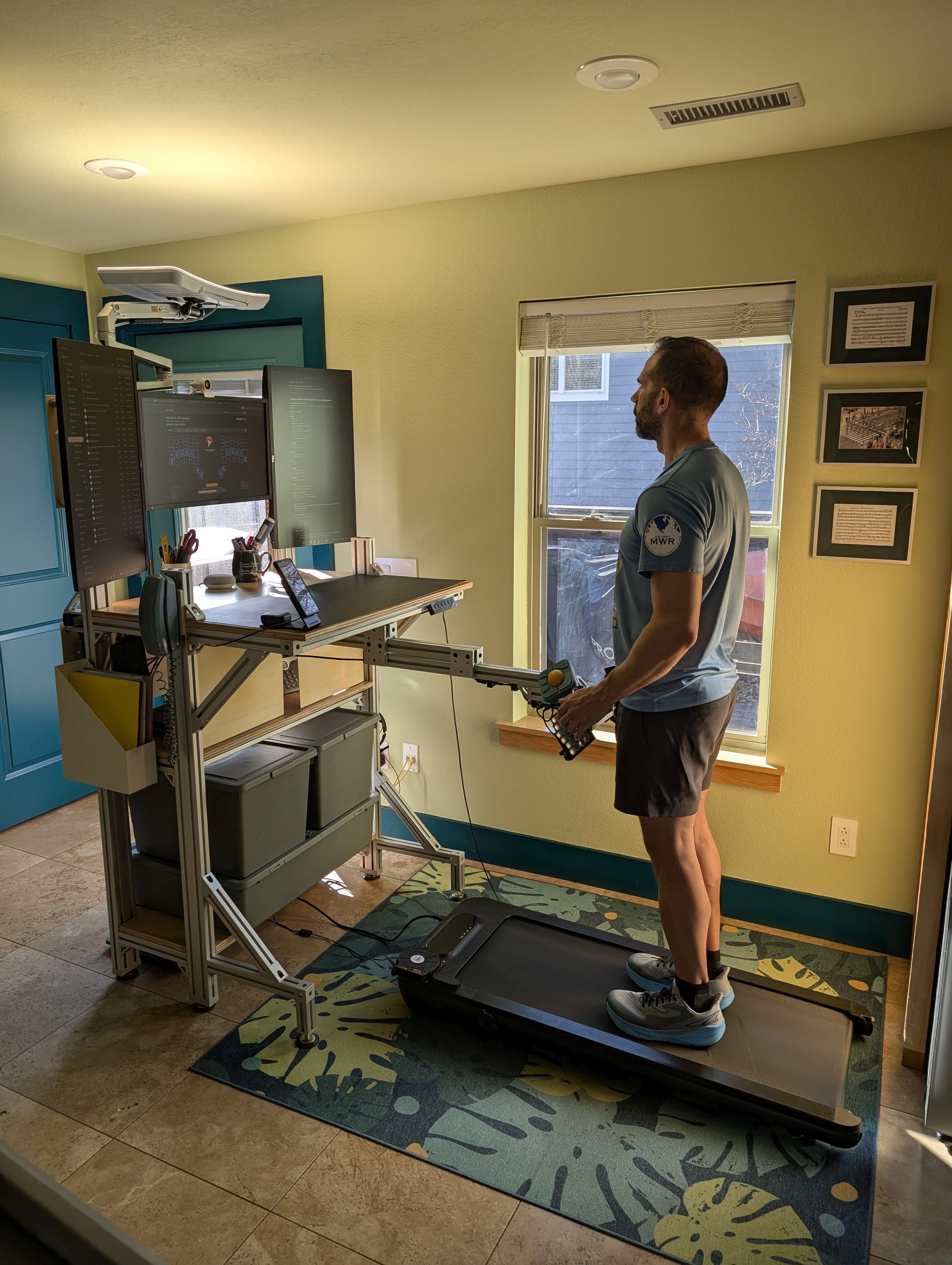
His Ploopy Adept trackball has been extensively customized using QMK firmware, resulting in nine layers and numerous custom keycodes. "Now anything I would have used a keyboard shortcut for in the past, I can do from the mouse," Andrew says. This includes Shift-click, Control-click, Enter, Backspace, Delete, Escape, Tab, Refresh, Undo/Redo, cut/copy/paste, app switching, media control, and much more.
Software and Automation
Andrew is an Android enthusiast who uses Tasker to automate various aspects of his mobile experience, such as toggling mobile radio based on Wi-Fi connection, managing VPN and private DNS settings depending on the network, and controlling ringer volume based on connected Wi-Fi networks and Bluetooth devices.
On his personal laptop (a dual-boot Lenovo ThinkPad X1 Carbon running Ubuntu Budgie and Windows), he uses Notepad++ and recently started using Obsidian. He's also been using the Beeper chat consolidation app, which allows him to access messages from multiple platforms without installing their native apps.
Home Lab and Self-Hosting
About a year ago, Andrew and his partner began self-hosting various services. They've set up Proxmox Virtual Environment on their home server with containers for file storage, media serving (using Jellyfin), photo management (using Immich), Syncthing for file synchronization, and Home Assistant for home automation.
He's considering hosting his own Bitwarden instance for password management and a Matrix bridge for chat, though he acknowledges "the list is endless. This is a blessing and a curse."
Dream Setup and Future Plans
Since adopting a treadmill at his desk, Andrew has become addicted to walking while working. His current inexpensive treadmill has some overheating issues despite various cooling solutions, so he's eagerly awaiting the arrival of the Office Walker, a manual walking pad he backed on Kickstarter.
He's also intrigued by the Svalboard keyboard with its magnetic switches and ergonomic design, though he acknowledges it would be a downgrade in terms of aesthetics compared to his Voyager.
The Result: A Workspace That Works
After extensive customization and thoughtful design, Andrew has created a workspace that perfectly suits his needs. The combination of ergonomic considerations, thoughtful lighting, clever cable management, and highly customized input devices has resulted in a desk that's not just functional but also aesthetically pleasing.
"I've spent a lot of time on my desk setup, and there's nothing else I can think of that I would change," Andrew concludes. His setup stands as a testament to the power of thoughtful design and the importance of creating a workspace that truly works for the individual.

Comments
Please log in or register to join the discussion