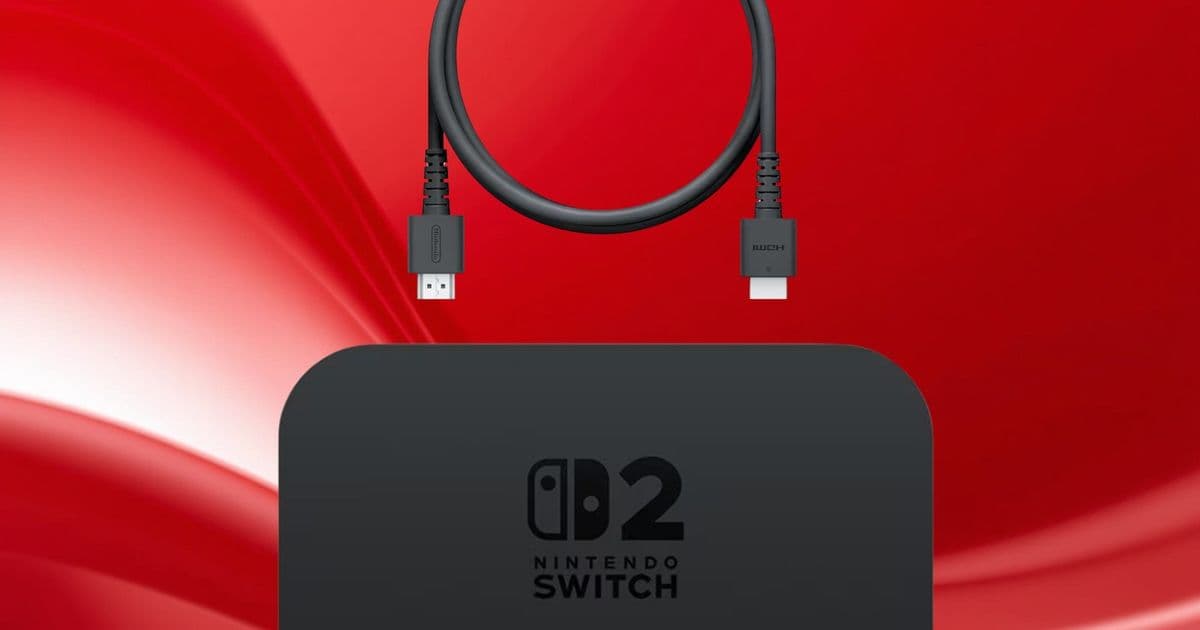
Nintendo’s Japanese support team released an unboxing video and guide after users complained they couldn’t find the ultra‑high‑speed HDMI cable bundled with the Switch 2, explaining its placement and specs.
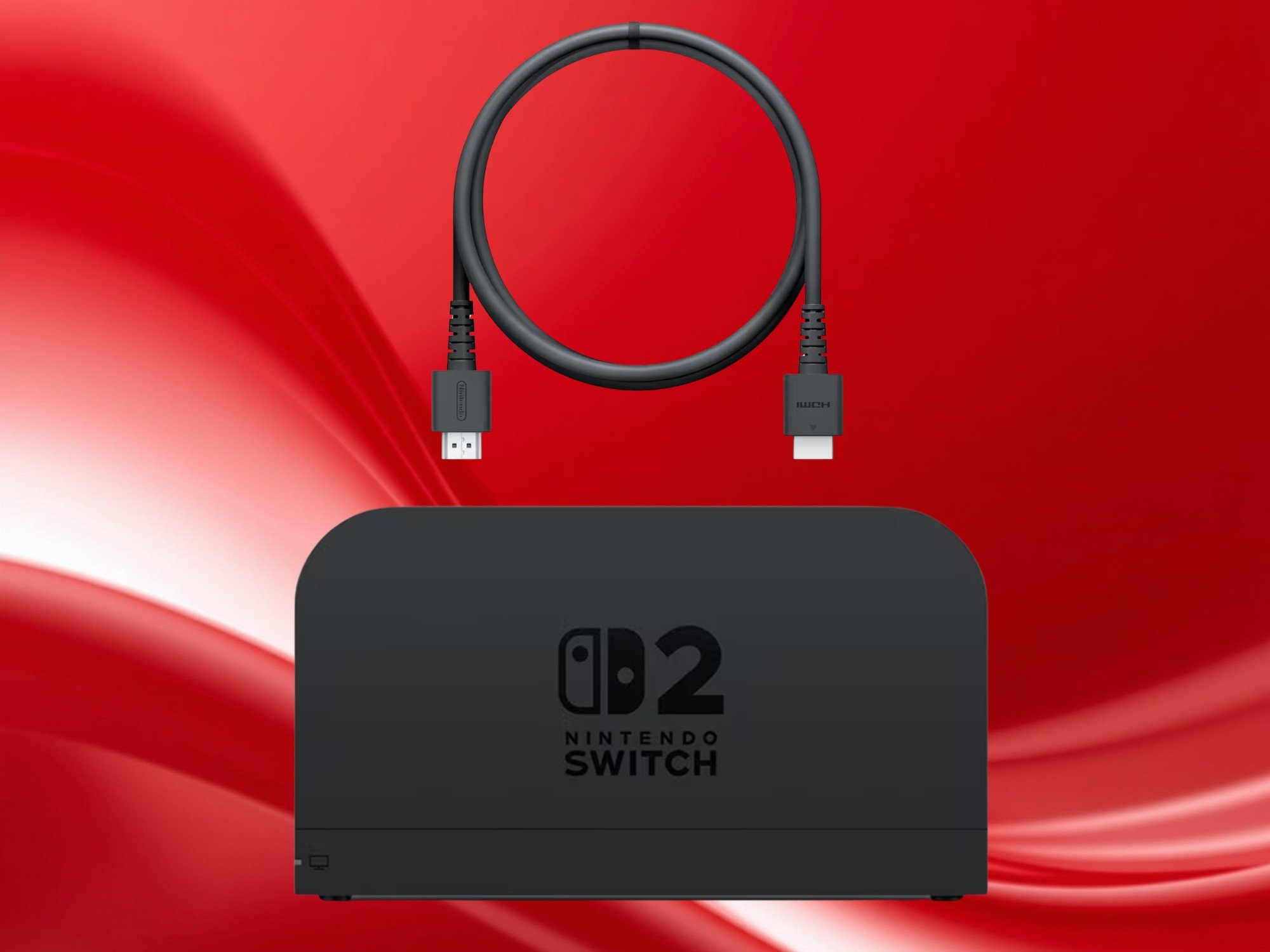
Nintendo Support clarifies missing HDMI cable in Switch 2 box
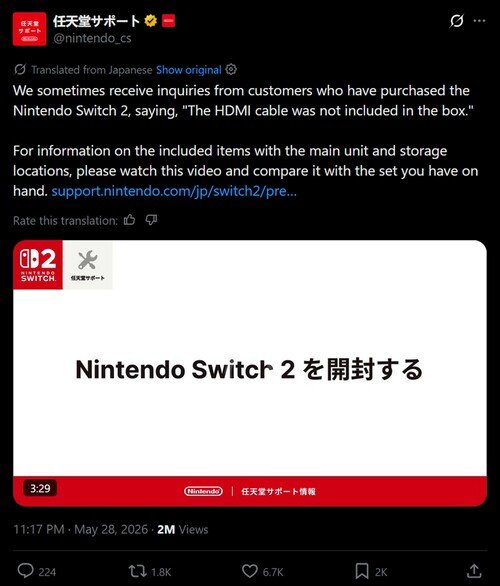
The Switch 2’s packaging has sparked more questions than usual. Early buyers posted photos of open boxes that seemed to lack the HDMI cable required to connect the dock to a TV. In response, Nintendo Support Japan published an unboxing video that walks through every compartment of the console’s box, pointing out exactly where the cable lives.
What the video shows
The video, posted to Nintendo’s official X account, splits the box into three logical sections:
- Top compartment – houses the handheld console itself, flanked by the left and right Joy‑Con 2 controllers.
- Middle layer – contains the dock, AC adapter, and charging cable.
- Bottom compartment – this is where the ultra‑high‑speed HDMI cable is tucked, alongside the small straps that secure the Joy‑Con 2 when stored in the console.
The placement is easy to miss because the bottom compartment is partially covered by the dock’s plastic tray. Once the tray is lifted, the 5‑foot HDMI cable slides out, coiled neatly against the strap bundle.
“We sometimes receive inquiries from customers who have purchased the Nintendo Switch 2, saying, ‘The HDMI cable was not included in the box,’” the support post reads. The accompanying help article repeats the same visual walkthrough and adds a short text description for users who prefer reading over video.
How the Switch 2 HDMI cable differs from the original
While the cable’s existence is now confirmed, it also brings a modest upgrade over the cable that shipped with the first‑generation Switch:
| Feature | Switch 1 cable | Switch 2 cable |
|---|---|---|
| Length | 3 ft (0.9 m) | 5 ft (1.5 m) |
| Specification | HDMI 1.4 | HDMI 2.1 |
| Max resolution | 1080p @ 60 Hz | 4K @ 60 Hz (up to 8K @ 30 Hz) |
| VRR support | No | No (spec allows it, but Nintendo’s dock firmware does not enable it) |
The new cable meets HDMI 2.1 bandwidth requirements, meaning it can carry a 4K/60 Hz signal without compression. For most Switch 2 users, the extra length is the most noticeable benefit – it reaches comfortably from the dock to a TV placed across a living‑room setup.
Why the clarification mattered
Even though Nintendo has never missed a bundled accessory in its production runs, the visual design of the box made the cable easy to overlook. Social‑media reactions ranged from light‑hearted jokes about the “slow‑motion” unboxing video to genuine frustration from users who tried to set up the dock immediately after purchase.
The support team’s decision to publish a step‑by‑step video serves two purposes:
- Reduces support tickets – By showing the exact location, fewer customers need to contact Nintendo for a replacement.
- Reinforces brand transparency – A clear, publicly available guide demonstrates that Nintendo is listening, even if the issue was a simple packaging quirk.
Who needs to care?
If you already have a Switch 2 and the dock is sitting on your TV, you probably have the cable in the bottom compartment. Grab it, plug it into the dock’s HDMI port, and you’re ready to enjoy the console’s 4K output on a compatible display.
If you opened the box and still can’t locate the cable, you have two options:
- Re‑watch the official video – It runs just under three minutes and pauses at each compartment.
- Order a replacement – Nintendo’s support portal offers the same ultra‑high‑speed cable as a spare part for a modest fee.
Bottom line
The Switch 2’s HDMI cable is not missing; it’s simply hidden beneath the dock’s tray. Nintendo’s quick response and clear visual guide should put the matter to rest for most owners. The cable’s longer length and HDMI 2.1 compliance are modest upgrades, but they do ensure the console can deliver its advertised 4K/60 Hz output when docked.
Sources: Nintendo Support Japan X account, Nintendo Support help article (link in video description).
Comments
Please log in or register to join the discussion