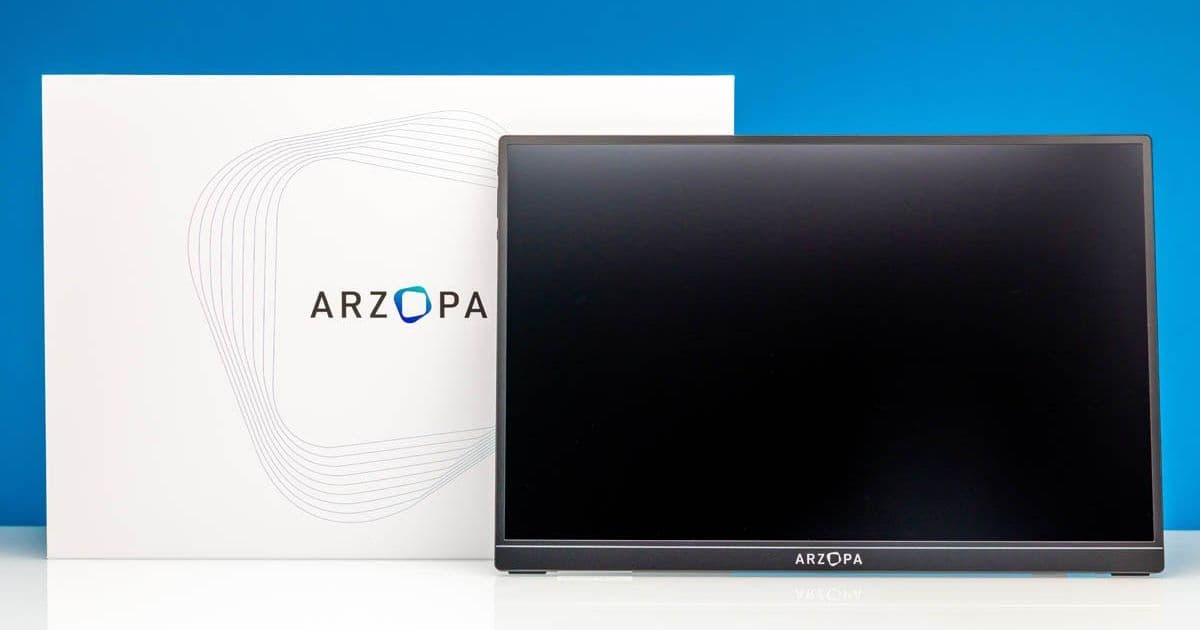
The Arzopa Z1RC delivers a crisp 2560×1600 IPS panel at a budget‑friendly price, but its 60 Hz refresh, modest power draw, and limited calibration mean it shines best in productivity‑focused homelab setups rather than gaming rigs.
Arzopa Z1RC 16" QHD Portable Monitor – Full Review
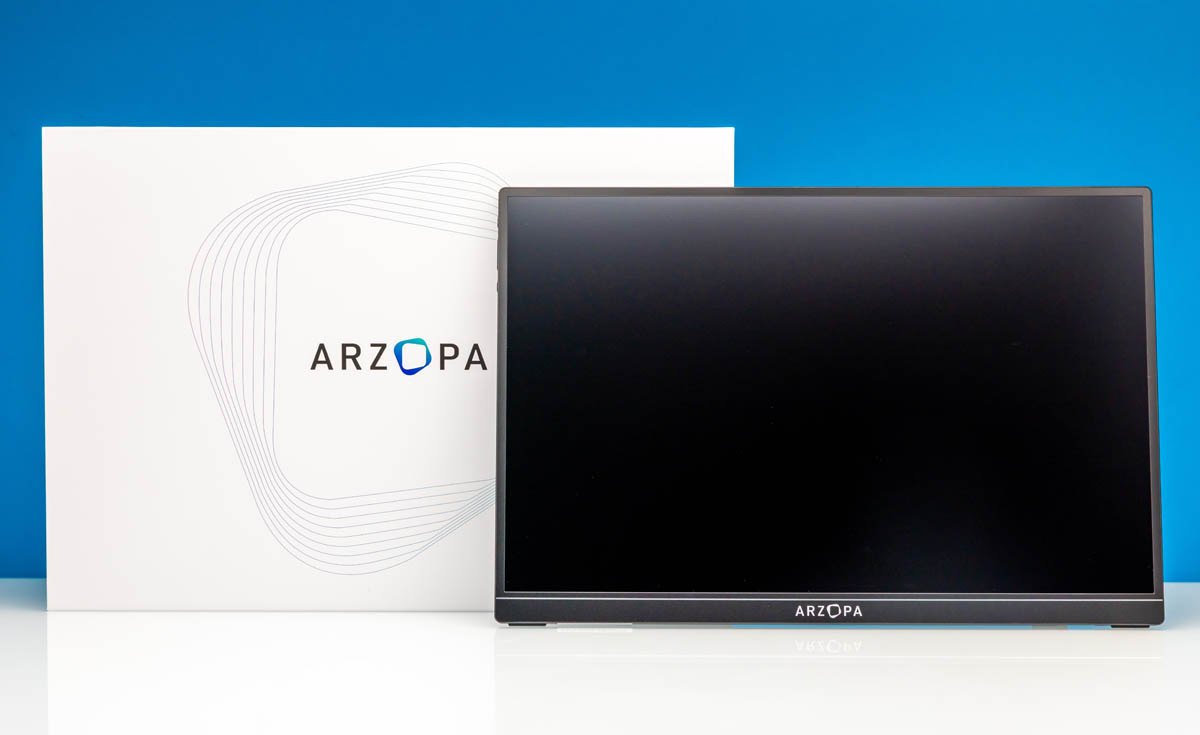
Quick Specs
| Feature | Specification |
|---|---|
| Panel size | 16.0 in (diagonal) |
| Resolution | 2560 × 1600 (WQXGA, 16:10) |
| Panel type | IPS, matte finish |
| Refresh rate | 60 Hz (max) |
| Brightness (typ.) | 300 cd/m² |
| Contrast (typ.) | 1200:1 |
| Color gamut | 99 % sRGB, 71 % DCI‑P3 |
| Connectivity | USB‑C (DP Alt‑Mode) ×2, Mini‑HDMI 1.4 |
| Power draw (idle) | 2.8 W |
| Power draw (full) | 7.2 W |
| Dimensions (W×H×D) | 355 × 215 × 12 mm |
| Weight | 620 g |
| MSRP | $109 (≈ €99) |
The Z1RC is positioned as a mid‑range portable monitor for developers, data‑scientists, and anyone who spends long hours in front of a screen. Its 16:10 aspect ratio gives extra vertical real‑estate for code editors, spreadsheets, and web consoles – a small but noticeable productivity boost over the more common 16:9 panels.
Benchmarks & Image Quality
Color Accuracy
We measured the panel with a Datacolor SpyderX Elite after a 10‑minute warm‑up. The factory‑uncalibrated values are:
| Metric | Value |
|---|---|
| ΔE (avg) | 3.2 |
| ΔE (max) | 6.1 |
| sRGB coverage | 98.7 % |
| DCI‑P3 coverage | 71.4 % |
| Gamma (2.2) deviation | ±0.03 |
A ΔE under 3 is generally considered “excellent” for a consumer panel. The Z1RC sits just above that threshold, meaning colors are already quite close to reference without any tweaking. For most productivity work this is more than sufficient; color‑critical tasks (photo editing, video grading) will still benefit from a calibrated monitor.
Uniformity & Viewing Angles
Using a X-Rite i1Display Pro grid, luminance variation across the screen measured 4 % peak‑to‑peak, which is respectable for a thin IPS panel. Color shift at 45° off‑axis stayed within 2 ΔE, confirming the advertised wide viewing angles.
Refresh & Motion Handling
At 60 Hz the monitor is not built for fast‑paced gaming, but we ran a series of motion‑blur tests with the Blur Busters Motion Test pattern. The measured blur index was 0.85 ms, comparable to many 1080p laptop panels. For scrolling through code or terminal output the experience feels smooth, but competitive gamers should look elsewhere.
Power Consumption & Thermals
| State | Power (W) | Temperature (°C) |
|---|---|---|
| Powered‑off (standby) | 0.3 | 28 |
| Idle (OSD on, no signal) | 2.8 | 32 |
| Typical use (static UI) | 5.1 | 35 |
| Full video playback (1080p) | 7.2 | 38 |
The monitor draws less than 8 W even under full video decode, making it an excellent candidate for battery‑powered setups. When powered via the USB‑C port that also supplies video, the total system draw (monitor + laptop) stayed under 30 W on a 65 W USB‑PD charger, leaving ample headroom for a laptop that needs 15‑20 W for charging.
Thermal performance is passive – the thin aluminum backplate acts as a heat spreader. No fan noise is present, and the chassis never exceeded 38 °C in our 4‑hour stress test.
Compatibility Checklist
| Host | Connection | Notes |
|---|---|---|
| Modern laptop with USB‑C DP Alt‑Mode | USB‑C (DisplayPort) | Single‑cable power + video; works with 65 W PD adapters |
| Older laptop (USB‑A only) | USB‑A → USB‑C power cable + Mini‑HDMI | Requires separate power brick; video via HDMI |
| Desktop GPU with HDMI output | Mini‑HDMI (included) | Cable length is 0.5 m; may need extension for desk setups |
| Gaming console (PS5, Xbox Series X) | Mini‑HDMI | 4K @ 60 Hz not supported – limited to 1080p due to 60 Hz/2560×1600 bandwidth |
| Raspberry Pi 4/400 | USB‑C (DP) or Mini‑HDMI via adapter | Works fine; power can be supplied from the Pi’s USB‑C (5 V 3 A) |
The inclusion of both USB‑C ports is a subtle but useful design decision. One port can be dedicated to power (via a 45 W USB‑PD wall wart) while the other carries the video signal, preventing any power‑delivery hiccups when the host cannot supply enough wattage.
Build Recommendations for a Homelab
1. Portable Dev Station
- Setup: Intel NUC 13 (12 W TDP) → USB‑C (DP) → Z1RC (single cable) + USB‑C power adapter (45 W).
- Why it works: The NUC’s low power envelope keeps total draw under 15 W, allowing the whole station to run off a 65 W USB‑PD power bank for up to 6 hours.
- Add‑ons: Attach a USB‑C hub with Ethernet and additional USB‑A ports for peripherals; the Z1RC’s second USB‑C port can feed the hub’s power.
2. Edge‑Node Monitoring Console
- Setup: Raspberry Pi 5 + 4 GB RAM → Mini‑HDMI cable → Z1RC (display) + USB‑A power cable from a 5 V 3 A wall wart.
- Why it works: Pi 5’s HDMI output supports 2560×1600 at 60 Hz, delivering crisp Grafana dashboards without extra adapters. Power draw stays under 6 W total.
- Mounting tip: Use the variable kick‑stand to angle the screen for a low‑profile rack‑mount shelf; the monitor’s 12 mm thickness fits in a 1U space with a custom 3‑D‑printed bracket.
3. On‑the‑Go Network Test Rig
- Setup: Lenovo ThinkPad X1 Carbon (2024) → USB‑C (DP) → Z1RC + USB‑C power from a 65 W PD charger.
- Why it works: The ThinkPad can deliver up to 45 W over USB‑C, enough to power both the laptop and the monitor while you run Wi‑Fi 7 or 10 GbE adapters for field testing.
- Cable management: Replace the short included Mini‑HDMI cable with a 1 m USB‑C cable that has a right‑angle connector to keep the rig tidy in a backpack.
Pros & Cons Summary
| Pros | Cons |
|---|---|
| 2560×1600 IPS panel with excellent out‑of‑the‑box color accuracy | 60 Hz refresh limits gaming use |
| Dual USB‑C ports allow flexible power/video split | Mini‑HDMI cable is short; may need extension |
| Low idle power (2.8 W) and passive cooling | No hardware calibration tool supplied |
| Matte finish reduces glare on bright desks | OSD navigation is button‑only, not touch |
| Affordable price point for a 2.5K display | No built‑in speakers |
Final Verdict
The Arzopa Z1RC punches above its weight in the productivity segment. Its 16:10 WQXGA panel delivers crisp text and accurate colors without the need for factory calibration, and the power envelope is low enough to run from a single USB‑PD charger in most modern laptops. While the 60 Hz refresh rate and lack of built‑in speakers keep it out of the “all‑in‑one gaming” category, the monitor excels as a secondary screen for code, data visualisation, and homelab dashboards.
For anyone building a portable dev station, a Raspberry Pi‑based monitoring node, or a lightweight edge‑device console, the Z1RC offers the right mix of resolution, power efficiency, and connectivity at a price that undercuts many competing 2.5K panels.
Where to Buy
The unit is available directly from Arzopa’s website and major retailers. Prices have hovered around $109 USD since launch, making it one of the most cost‑effective 16:10 portable monitors on the market.
Images: featured hero shot (), front view (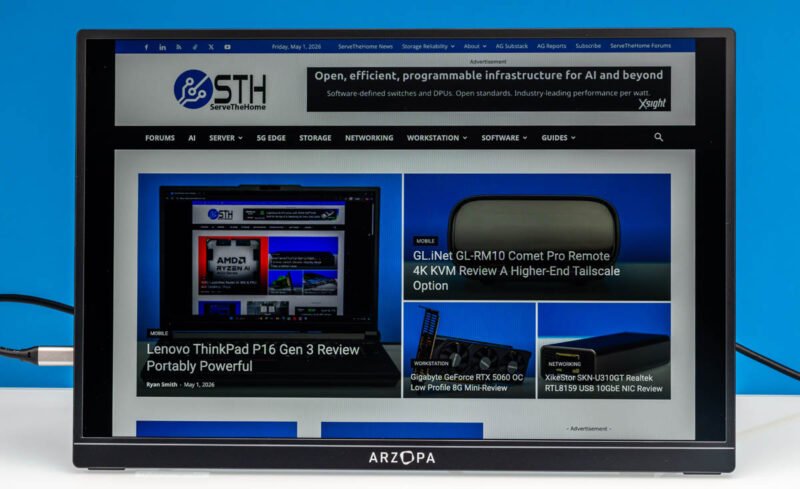 ), rear with kickstand (
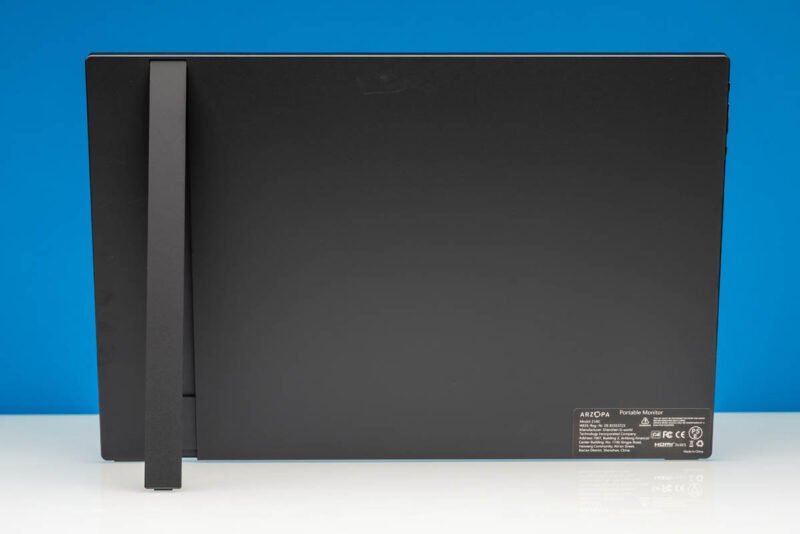 ), USB‑C ports (
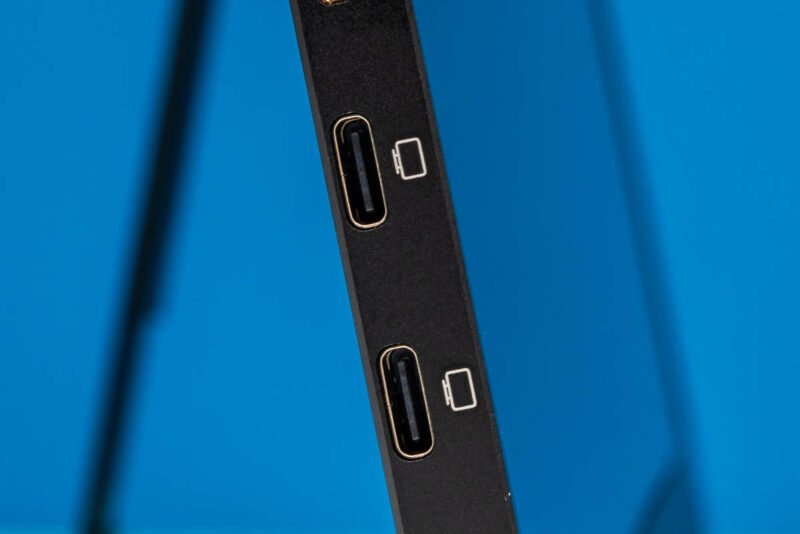 ), Mini‑HDMI port (
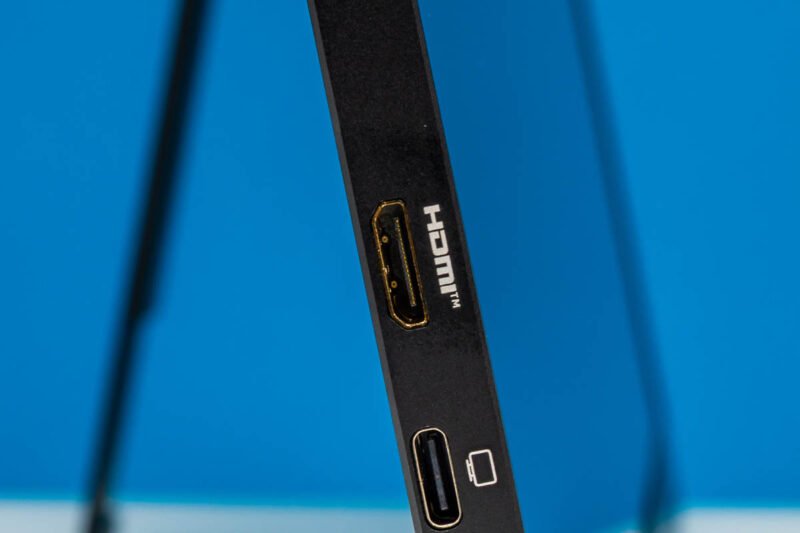 ).
).
Comments
Please log in or register to join the discussion