
Strong AD passwords are essential, but overly strict rules drive risky workarounds. By adopting passphrases, blocking compromised passwords, extending expiration based on length, and adding self‑service tools, organizations can tighten security without flooding help desks.
Balancing Strong Active Directory Password Policies with User Convenience

Active Directory remains the backbone of most enterprise identity ecosystems, and its password hygiene directly influences the organization’s attack surface. A recent Verizon Data Breach Investigation Report showed that stolen credentials were involved in 44.7 % of breaches, underscoring the need for smarter, not just stricter, password controls.
Why Traditional Complexity Rules Miss the Mark
For years, many AD environments have relied on policies that demand a mix of uppercase, lowercase, numbers, and symbols. In practice, users respond by creating predictable strings such as Password!2026 or by appending a single character to an old password. Those patterns are exactly what password‑spraying tools exploit.
“Complexity for its own sake creates a false sense of security,” says Dr. Maya Patel, senior security researcher at the SANS Institute. “Length, randomness, and uniqueness are far more effective metrics.”
Passphrases over forced complexity
NIST’s SP 800‑63B recommends allowing passwords up to 64 characters and encourages the use of passphrases—multiple unrelated words strung together. A 15‑character passphrase such as tulip‑river‑cactus‑glade is easier to remember and dramatically harder to crack than an 8‑character complex password.
Practical tip: Set the minimum length to 15 characters and remove mandatory character‑class requirements. Let users choose any characters they like, as long as the overall length meets the threshold.
Proactively Blocking Weak and Compromised Passwords
Even with longer passwords, users may still pick common or previously breached values. Real‑time validation at the point of creation is the most efficient defense.
- Custom banned‑word lists – Build dictionaries that include company‑specific terms, employee names, or product codes. Specops Password Policy lets you import CSV files and update the list centrally.
- Breach‑password checking – The tool continuously compares new passwords against a database of 5.4 billion known compromised credentials. If a match is found, the password is rejected before it ever lands in AD.
“Stopping a bad password at creation is far cheaper than responding to a compromised account later,” notes James Liu, Principal Engineer at Specops Software.
Rethinking Password Expiration
Mandatory rotation every 30‑90 days is a legacy practice that often backfires. Users make minimal changes—Password1! becomes Password2!—which attackers can guess with ease.
Length‑based aging flips the script: tie the expiration interval to password length. For example:
| Length | Expiration Interval |
|---|---|
| 12‑14 | 90 days |
| 15‑20 | 180 days |
| 21+ | No forced expiration |
When a breach is detected, you can still force an immediate reset, preserving security while rewarding users who adopt longer passphrases.
Reducing Help‑Desk Load with Self‑Service Tools
Password resets generate a large share of AD help‑desk tickets. Implementing a self‑service password reset (SSPR) portal that validates identity via MFA (e.g., Microsoft Authenticator or Duo) lets users unlock accounts instantly.
- Benefits: Faster recovery, fewer tickets, reduced exposure to social‑engineering attacks.
- Implementation note: Ensure the SSPR flow logs every reset and integrates with your SIEM for auditability.
Complementary Controls: Password Managers and Dynamic Feedback
Password managers
Even the strongest AD policy can’t stop credential reuse across SaaS apps. Deploy an enterprise‑approved password manager (e.g., 1Password Business, Bitwarden) and enforce its use through Group Policy. Managers generate truly random passwords and store them securely, eliminating the need for users to remember multiple credentials.
Real‑time creation feedback
Vague error messages frustrate users. Provide a strength meter and explicit guidance such as:
- “Add another word to reach 15 characters.”
- “Your password contains a banned word: projectX.”
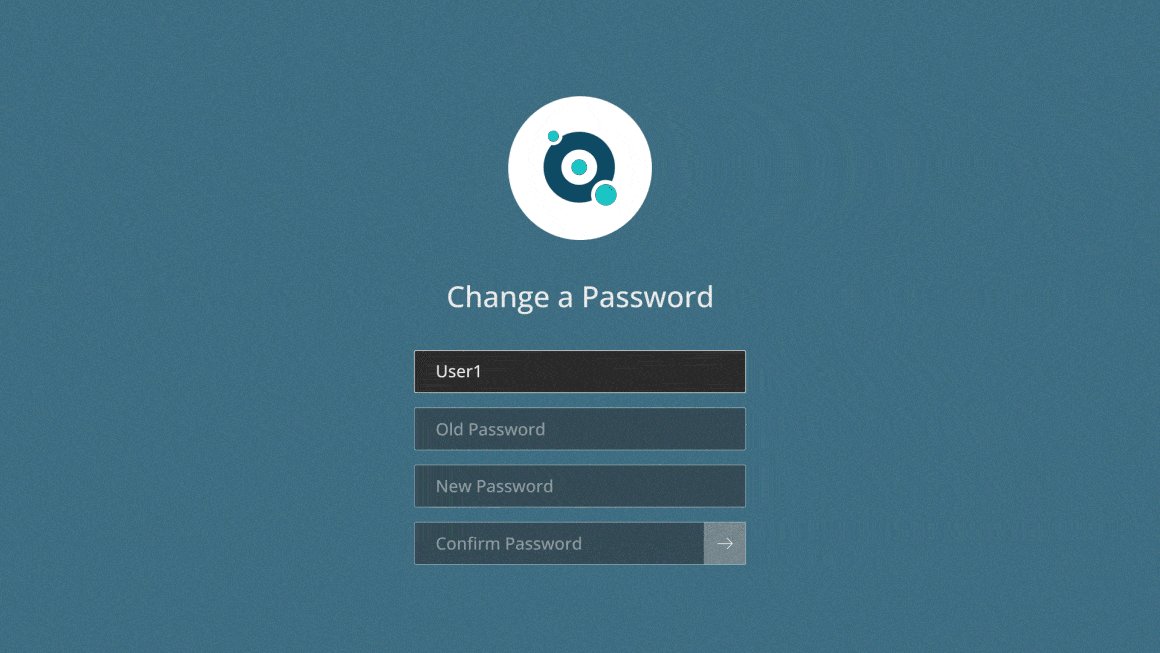
Specops Password Policy includes a UI extension that injects these prompts directly into the Windows password change dialog.
Getting Started with Specops Tools
- Run a baseline audit – Download the free Specops Password Auditor. It performs a read‑only scan of your AD and produces a report highlighting weak hashes, password‑policy gaps, and accounts with never‑changed passwords. Download here.
- Deploy Password Policy – Use the policy engine to enforce length, banned‑word lists, and breach checks. Detailed documentation is available on the Specops website.
- Educate users – Share a quick guide on creating memorable passphrases and the benefits of the new policy. Pair the rollout with a short video demonstration of the self‑service reset portal.
Key Takeaways
- Prioritize length and uniqueness over arbitrary complexity rules.
- Block weak and breached passwords at creation using a solution like Specops Password Policy.
- Tie expiration periods to password length, and only enforce rotation when a compromise is detected.
- Deploy self‑service password resets and an approved password manager to cut support tickets and prevent reuse.
- Provide real‑time, specific feedback during password creation to guide users toward compliant choices.
By aligning policy with human behavior, you can raise the security bar for Active Directory while keeping the user experience smooth and frustration‑free.
Sponsored content prepared by Specops Software. For a live demo, visit the Specops product page.
Comments
Please log in or register to join the discussion