A developer‑focused look at the hidden costs of custom UI components—from scroll handling to password fields—and why the safe, standards‑based approach wins for users and maintainers alike.
What happened
In a recent post, Susam Pal reminded us of a classic rule of thumb: don’t roll your own crypto. He then extended the idea to the world of web interfaces, listing a handful of everyday UI features that most developers try to re‑implement from scratch—custom scroll handling, link navigation, text selection, context menus, copy‑paste, password fields, and date pickers. Pal argues that these “home‑grown” solutions often degrade the user experience, break accessibility, and create maintenance headaches.
Why developers should care
1. Users already know the native behavior
When you replace the browser’s built‑in scrolling with a JavaScript‑driven version, you immediately change the feel of a fundamental interaction. The mouse wheel, touchpad gestures, and keyboard arrows all have finely tuned acceleration curves that differ across operating systems. A custom implementation rarely matches that nuance, leading to scroll that feels too slow, too fast, or simply unresponsive. The result is a subtle but constant friction that users notice even if they can’t name it.
2. Accessibility takes a hit
Native controls are wired into the platform’s accessibility APIs. Screen readers, voice control, and keyboard‑only navigation all rely on the standard semantics of <a>, <input type="password">, <input type="date">, etc. When you replace a password field with a plain <input type="text"> and mask characters yourself, you lose the hints that tell a screen reader “this is a password”. The same goes for custom context menus or copy‑paste handling—assistive technologies may no longer expose the expected commands, leaving users with disabilities stranded.
3. You lose the security and convenience baked into browsers
The built‑in password input does more than hide characters. It cooperates with password managers, offers to generate strong passwords, warns about insecure connections, and integrates with mobile keyboards that provide “show password” toggles. A DIY field can’t replicate that ecosystem without a lot of extra work, and even then it will lag behind browser updates.
4. Maintenance overhead multiplies
Every custom component is a separate code path that must be kept compatible with new browsers, OS updates, and emerging standards. The more you diverge from native elements, the more bugs you inherit. A bug in a custom date picker, for example, may surface only on a specific locale or when the user selects a leap‑year date—issues that the native <input type="date"> already handles.
5. Performance penalties are real
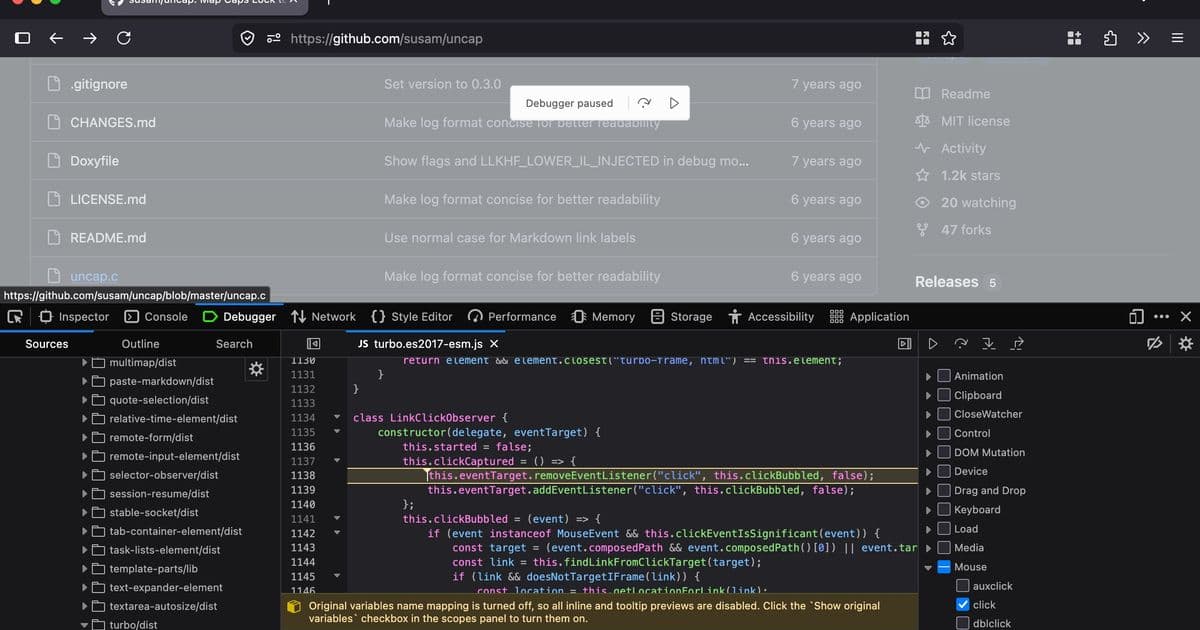
Consider the example Susam points out on GitHub: clicking a link triggers a massive JavaScript bundle that intercepts the click, fetches data via AJAX, and updates the page. While this enables a smooth single‑page‑app feel, it also adds latency. Opening the same link in a new tab bypasses that bundle and loads the page directly, often faster. The extra JavaScript work is a classic case of “rolling your own navigation” that can backfire on performance‑sensitive users.
Community response
The developer community on Hacker News and r/programming has largely echoed Pal’s concerns. A common thread in the comments is a call for progressive enhancement: start with native elements, then layer on JavaScript only when you truly need extra capabilities. Several contributors shared concrete alternatives:
- Scrolling – Use CSS
scroll-behavior: smooth;for simple smooth‑scroll effects instead of a full‑blown scroll library. - Link navigation – Rely on the browser’s default navigation and only add
preventDefault()when you need to fetch data for a modal or drawer, keeping the fallback link intact. - Context menus – Leverage the HTML5
contextmenuattribute for custom actions while preserving the native menu for power users. - Date input – Combine two native
<input type="date">fields for start/end ranges, or use the emerging<input type="datetime-local">where appropriate.
One particularly popular comment linked to the GitHub debugging tip that Susam mentioned, showing how to pause on a click event in the DevTools. The screenshot below illustrates the breakpoint setup and the flood of JavaScript that runs after a link click on GitHub:
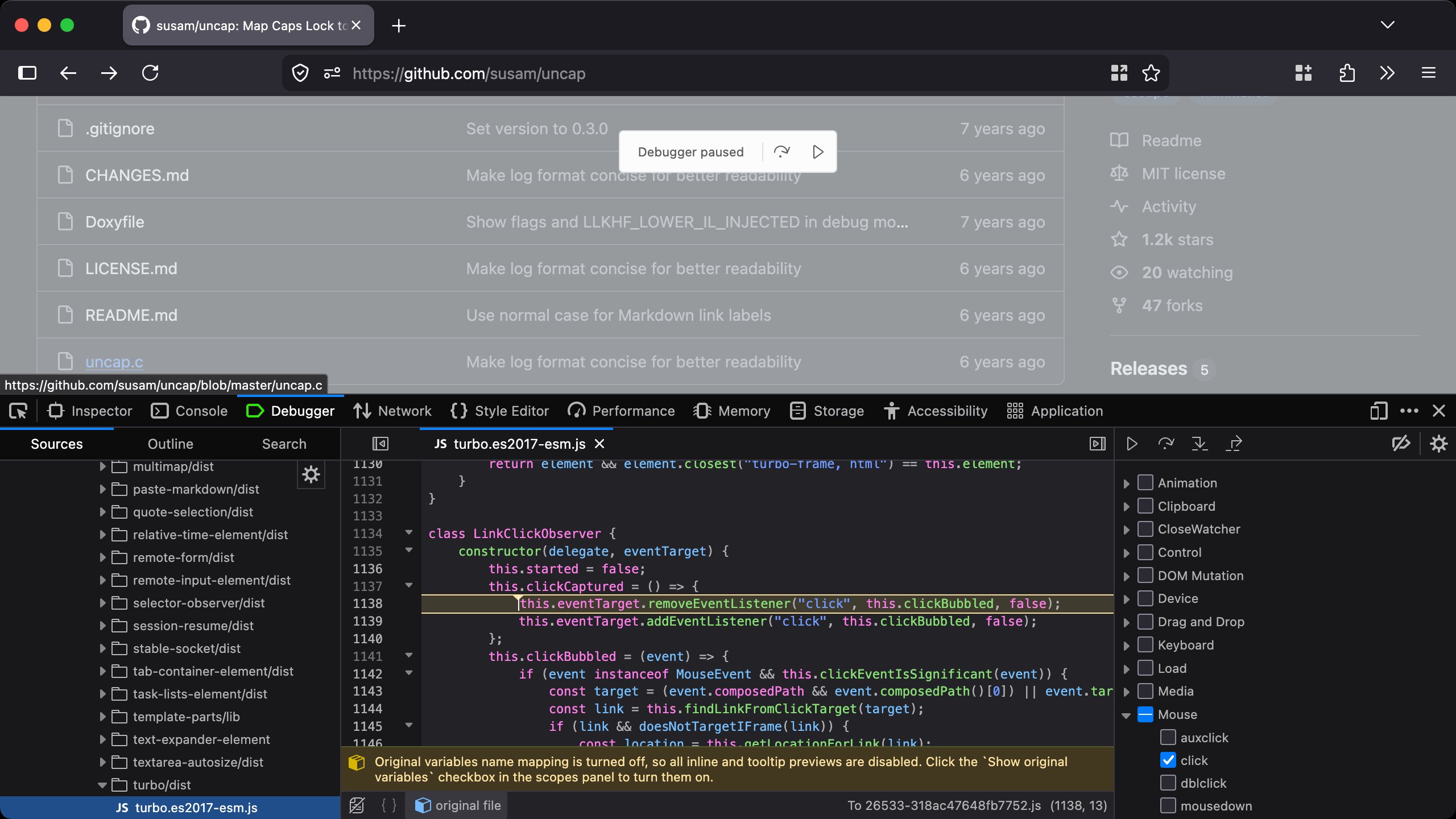
Developers who tried the trick reported a mix of surprise and relief—surprise at how much code runs for a simple navigation, and relief that they now have a concrete way to measure the impact.
Takeaways
- Prefer native controls – They are already optimized for ergonomics, security, and accessibility.
- Add JavaScript sparingly – When you need extra features, build on top of the native element rather than replacing it.
- Test with real users – Especially those who rely on assistive technologies; they’ll surface issues you might miss in a quick visual test.
- Watch performance – Use browser profiling tools to see if your custom code adds measurable latency.
- Stay consistent – Frequent UI overhauls confuse users, especially less tech‑savvy ones. A stable interface builds trust.
By treating the web platform as a solid foundation rather than a blank canvas, we can avoid the hidden costs of reinventing everyday UI components. The next time you reach for a third‑party scroll library or a fancy custom password field, ask yourself whether the benefit truly outweighs the risk of breaking something users already trust.
Comments
Please log in or register to join the discussion