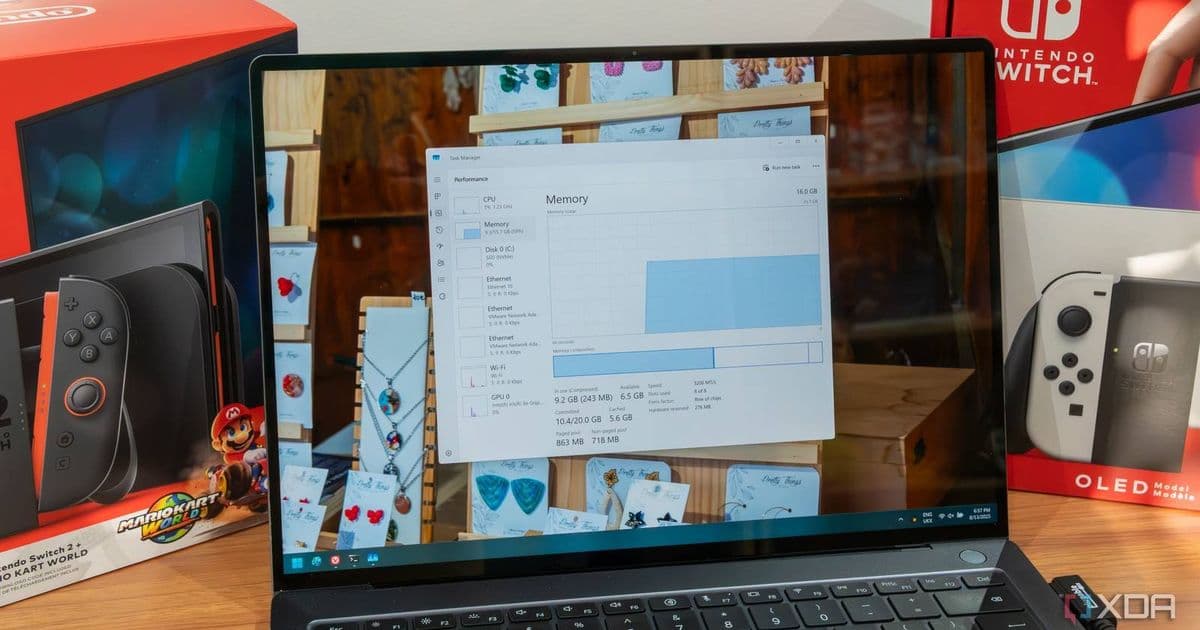
Microsoft adds NPU, NPU Engine, and memory usage columns to Task Manager, along with AppContainer isolation tracking for better AI processor visibility.
Windows 11 is taking a significant step toward better AI hardware transparency with the latest Dev build 26300.8142, which introduces comprehensive NPU (Neural Processing Unit) monitoring to the Task Manager. This long-awaited feature arrives as AI processors become increasingly central to Microsoft's Copilot+ PC ecosystem, finally giving users visibility into how their dedicated AI hardware is performing.
What's New in Task Manager
The update brings three new optional columns to Task Manager's Processes and Details views:
- NPU: Shows the current utilization percentage of your AI processor
- NPU Engine: Displays which AI engine is being used for specific processes
- Dedicated/Shared Memory: Reveals how much memory is allocated to AI workloads
These columns can be enabled through Task Manager's column customization options, allowing users to monitor AI processor activity alongside traditional CPU, memory, and disk usage metrics.
Enhanced Security Visibility
Beyond NPU monitoring, the update introduces an 'Isolation' column that indicates which applications are running in AppContainer mode. This security feature, which isolates apps from the broader system, now provides at-a-glance visibility in Task Manager, helping users understand their system's security posture.
Why This Matters for Copilot+ PCs
The timing of this update is particularly relevant as Microsoft pushes forward with its Copilot+ PC initiative. These devices, which require dedicated NPUs for AI acceleration, have become a cornerstone of Microsoft's hardware strategy. Without proper monitoring tools, users were essentially flying blind when it came to understanding how their AI processors were being utilized.
NPUs handle tasks like background blur in video calls, AI-powered photo editing, and on-device machine learning inference. Being able to monitor their activity helps users:
- Diagnose performance issues related to AI workloads
- Understand battery impact from AI processing
- Verify that AI features are functioning correctly
- Optimize system performance for AI-intensive tasks
Availability and Installation
This feature is currently rolling out to Windows Insiders in the Dev channel. The Dev channel sits between the experimental Canary builds and the more stable Beta channel, meaning this feature will undergo testing before reaching the broader Windows 11 user base.
To access these new features, users need to:
- Join the Windows Insider Program
- Select the Dev channel in Windows Update settings
- Install the latest available build
- Open Task Manager and enable the new columns via right-click on column headers
The Bigger Picture
This update reflects Microsoft's growing commitment to AI transparency and hardware optimization. As AI becomes increasingly integrated into the Windows experience, from Windows Studio Effects to Recall functionality, having proper monitoring tools becomes essential for both power users and everyday consumers.
The addition of NPU monitoring also aligns with broader industry trends toward specialized AI hardware. Similar to how GPU monitoring became standard as graphics cards became essential for gaming and creative work, NPU monitoring is likely to become a standard feature across operating systems as AI processing becomes ubiquitous.
For developers and power users, these new metrics provide valuable insights into how applications leverage AI acceleration, potentially informing optimization decisions and troubleshooting efforts. For the average user, it offers peace of mind by making the invisible work of AI processors visible and understandable.
As Windows 11 continues to evolve, this NPU monitoring feature represents a practical step toward making AI hardware as accessible and understandable as traditional computing components.
Comments
Please log in or register to join the discussion