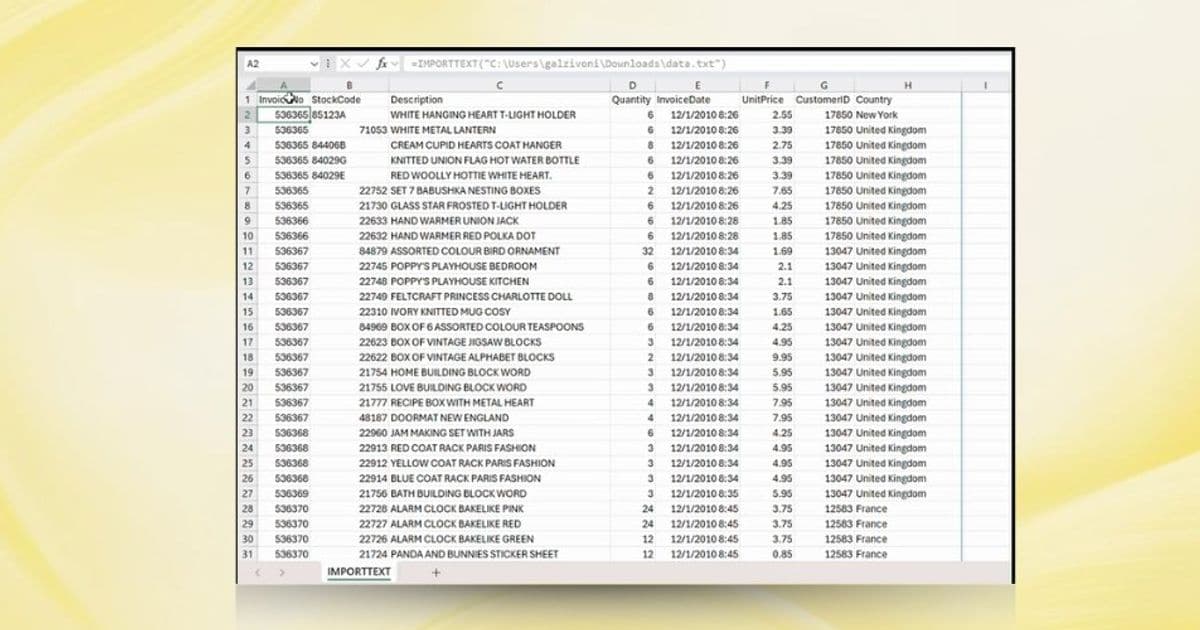
Microsoft has introduced IMPORTTEXT and IMPORTCSV functions to Excel for Windows, offering a formula-based alternative to Power Query for importing text and CSV files directly into the grid as dynamic arrays.
Microsoft's Excel team has announced a significant update for data import workflows with the introduction of two new functions: IMPORTTEXT and IMPORTCSV. Available now for Windows users in the Beta Channel (Version 2502, Build 18604.20002 or later), these functions provide a lightweight, formula-based method for bringing text-based data directly into Excel's grid as dynamic arrays.
This update addresses a common pain point identified by users. While Power Query remains a powerful tool for complex data transformation and ETL processes, its user interface can feel heavy for straightforward import tasks. Many professionals simply need to pull a CSV or text file into Excel's grid without the overhead of Power Query's multi-step interface. The new Import Functions offer a more intuitive, single-formula approach for these scenarios.
How the New Import Functions Work
IMPORTTEXT: Flexible Data Import
The IMPORTTEXT function provides granular control over how data is parsed from text files. It supports .txt, .csv, and .tsv files and allows users to specify delimiters, encoding, row filtering, and more.
To use IMPORTTEXT:
- Select the target cell in Excel
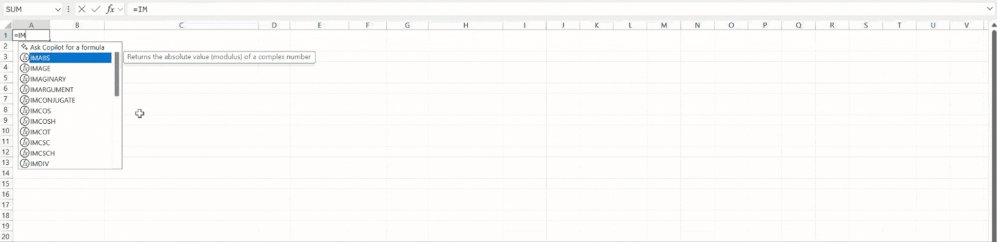
- Type
=IMPORTTEXT( - Enter the file path (local or URL)
- Optionally add parameters for delimiter, rows to skip/take, encoding, or locale
- Press Enter
The data imports as a dynamic array, which automatically expands to accommodate the imported data. Users can refresh the data using the standard Data > Refresh All command.

IMPORTCSV: Simplified CSV Import
IMPORTCSV serves as a streamlined version of IMPORTTEXT, specifically designed for CSV files. It uses smart defaults (comma delimiter, UTF-8 encoding) to minimize parameters needed for common CSV import scenarios.
To use IMPORTCSV:
- Select the target cell
- Type
=IMPORTCSV( - Enter the CSV file path (local or URL)
- Optionally specify rows to skip/take or a locale
- Press Enter
Like IMPORTTEXT, the result is a refreshable dynamic array.
Advanced Usage and Integration
The Import Functions support several advanced techniques:
Fixed-width column parsing: You can import data with fixed-width columns by passing a comma-separated array of ascending integers in the delimiter argument. For example, =IMPORTTEXT("C:\Data\fixedwidth.txt", {1,3}) would parse the first column as characters 1-3 and the second column as characters 4-6.
Special character delimiters: The CHAR function can be used to specify special characters as delimiters, enabling import of data with non-standard separators.
Copilot integration: Import Functions can serve as context for the =COPILOT function, allowing users to ask questions about the imported data directly within Excel.
Strategic Implications for Excel Workflows
This update represents a strategic shift in Microsoft's approach to data import in Excel. By providing a formula-based alternative to Power Query, Microsoft is catering to different user personas and workflow requirements:
For Power Users: Power Query remains the go-to tool for complex data transformation, merging multiple sources, and building repeatable ETL processes. Its graphical interface and M language provide depth that functions cannot match.
For Quick Import Tasks: The new Import Functions excel when the requirement is simple: get data from point A to point B with minimal configuration. The formula syntax is familiar to Excel users and integrates naturally with Excel's calculation engine.
For Dynamic Array Workflows: Since the imported data is returned as a dynamic array, it can be immediately consumed by other Excel functions without additional conversion steps. This creates a more seamless experience for formula-based analysis.
Migration Considerations
Organizations currently using Power Query for simple CSV imports should evaluate whether the new functions could simplify their workflows. The key considerations include:
Refresh Requirements: Both approaches support data refresh, but the mechanism differs. Power Query refreshes through its own interface, while Import Functions refresh through Excel's standard data refresh command.
Transformation Complexity: If your import process requires data cleaning, column splitting, or merging multiple files, Power Query remains the more appropriate tool. Import Functions are designed for direct import with minimal transformation.
File Path Management: Both approaches support local and network paths, but Power Query offers more sophisticated options for dynamic file paths and parameterization.
Team Collaboration: Consider whether your team is more comfortable with formula-based approaches or graphical interfaces when choosing between these tools.
Availability and Access
The Import Functions are currently available to Excel for Windows users in the Beta Channel running Version 2502 (Build 18604.20002) or later. Users not in the Beta Channel will need to wait for broader rollout. To access the feature:
- Ensure your account is enabled for Microsoft 365 Insider features
- Update to the latest version of Excel for Windows
- Verify availability through the Microsoft 365 Insider program
For users outside the Windows ecosystem, Microsoft has not yet announced availability for Excel on Mac, web, iOS, or Android platforms.
The Broader Context: Excel's Evolution
This update continues Microsoft's trend of enhancing Excel's data connectivity capabilities. Over recent years, Excel has evolved from a standalone spreadsheet application into a more integrated data analysis platform. The introduction of dynamic arrays, LAMBDA functions, and now Import Functions reflects Microsoft's commitment to modernizing Excel while maintaining backward compatibility.
The Import Functions also align with Microsoft's broader strategy of providing multiple pathways for data import. Power Query serves the ETL and data transformation market, while these new functions cater to the "quick import" use case. This multi-pronged approach allows Excel to serve a wider range of users and scenarios.
Getting Started
For users ready to try the new Import Functions, Microsoft recommends starting with simple CSV files to understand the basic functionality. The IMPORTCSV function is particularly well-suited for this exploration, as its simplified parameter set reduces the learning curve.
Users can provide feedback on the feature through Excel's Help > Feedback menu or via the Microsoft Feedback portal. Microsoft is actively soliciting input to refine these functions before broader release.
For more detailed information about the functions and their parameters, users can consult the official documentation for IMPORTTEXT and IMPORTCSV functions.
The Import Functions represent a meaningful addition to Excel's data import toolkit, offering a faster, more intuitive approach for common import scenarios while preserving Power Query's capabilities for more complex transformations. As with any new feature, its true value will be determined by how users incorporate it into their daily workflows.
Comments
Please log in or register to join the discussion