
Microsoft is rolling out powerful image editing tools directly in PowerPoint, letting users remove backgrounds, erase objects, upscale resolution, and add text without leaving their slides.
Microsoft is bringing advanced image editing capabilities directly into PowerPoint, eliminating the need to switch between applications when perfecting visuals for presentations. The new feature, rolling out to PowerPoint for the web users and available in recent desktop versions, puts tools like background removal, object erasing, text addition, and resolution upscaling right at your fingertips.
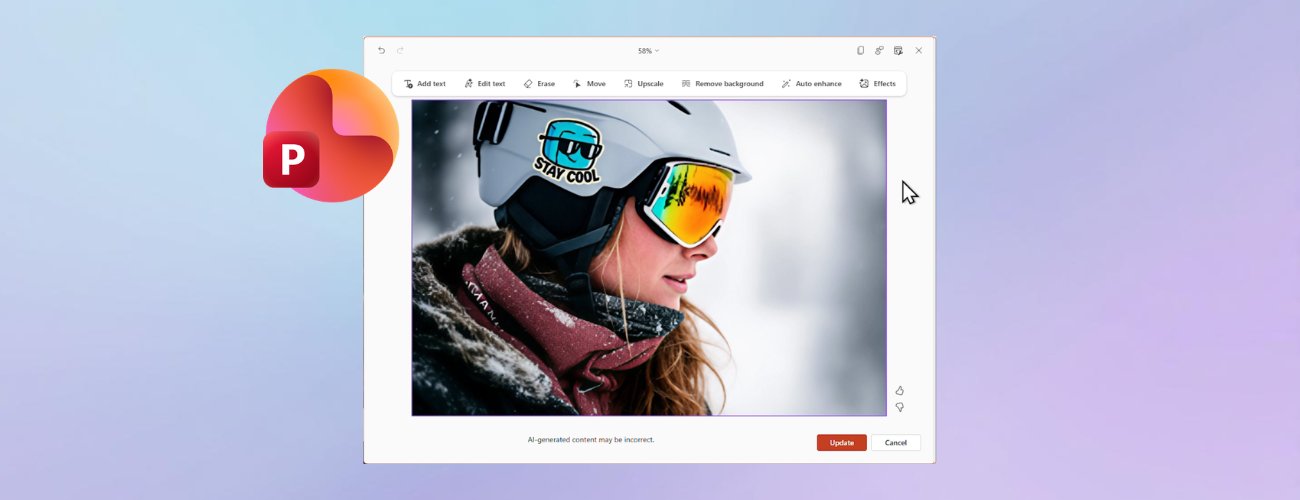
What's New in PowerPoint's Image Editor The built-in image editor introduces several powerful tools that work directly within your PowerPoint slide:
- Remove Background - Automatically detects and removes image backgrounds with precision
- Erase - Lets you manually remove unwanted objects or artifacts from images
- Move - Allows repositioning of elements within an image
- Upscale - Improves resolution and clarity for pixelated or low-quality images
- Auto Enhance - Automatically adjusts lighting and contrast for better presentation-ready visuals
- Add Text/Edit Text - Lets you insert or modify text directly on images with various text effects
- Effects - Apply filters and visual enhancements
How It Works Using the new image editing tools is straightforward:
- Select any image on your PowerPoint slide
- Click the Edit Image button in the Picture Format tab, or right-click the image and choose Edit Image
- Apply your desired edits using the available tools
- Preview changes in real-time
- Click Update to apply the edited image directly to your slide
Practical Use Cases This feature addresses several common presentation challenges:
- Clean up screenshots and photos - Remove distracting backgrounds before placing images into layouts
- Enhance low-resolution images - Improve clarity for images copied from the web or scanned documents
- Add annotations - Insert text with cool effects to highlight key points
- Remove unwanted elements - Use Erase to eliminate objects or artifacts that don't belong
- Improve visual quality - Auto-enhance lighting and contrast to make images presentation-ready
- Prepare for large displays - Upscale images to prevent pixelation on big screens
Availability and Access The feature is rolling out gradually to ensure quality and performance. It's available to users running:
- Windows: Version 2510 (Build 19422.20000) or later
- Mac: Version 16.104 (Build 25121423) or later
- Web: Rolling out to PowerPoint for the web users
As with many preview features, availability may vary by user, and Microsoft may pause, adjust, or remove features during the rollout process.
Getting Started To access these tools, ensure you're running the minimum required version for your platform. The feature is part of the Microsoft 365 Insider program, which provides early access to new capabilities.
Microsoft welcomes feedback on the new image editing tools. After opening the image editor, you can share your thoughts by selecting Send feedback to Microsoft in the top-right corner or using the thumbs up/down buttons in the bottom-right corner.
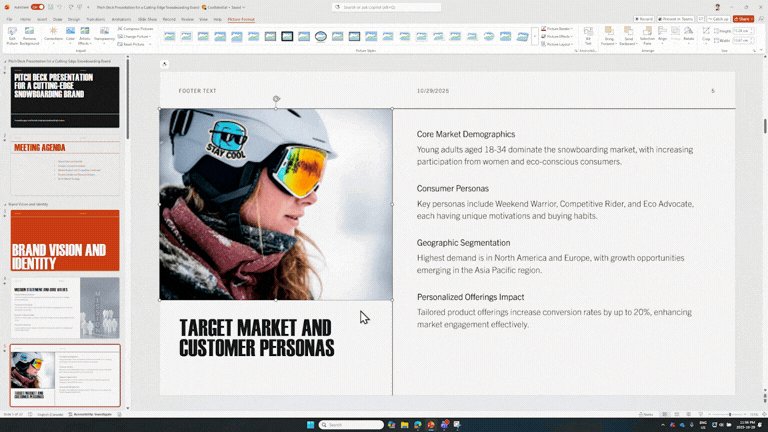
This enhancement represents a significant step toward making PowerPoint a more comprehensive content creation tool, allowing users to perfect their visuals without disrupting their workflow by switching between multiple applications.
Comments
Please log in or register to join the discussion