iOS 26 transforms how you add calendar events by letting you create them directly from screenshots using Apple Intelligence.
iOS 26 introduces a clever new feature that makes adding calendar events as simple as taking a screenshot. While the update brings significant changes to apps like Wallet, Messages, and Music, Apple's Calendar app gains one particularly convenient advantage: the ability to create events directly from screenshots using the platform's new visual intelligence capabilities.
The New Screenshot Experience
The most noticeable change in iOS 26 is how screenshots behave by default. Instead of appearing as a small floating thumbnail in the bottom-left corner, screenshots now open a fullscreen UI immediately. This change isn't arbitrary—it's designed to showcase Apple's new visual intelligence features that work on all AI-compatible iPhones.
For users who prefer the old behavior, Apple has maintained the option to revert to thumbnail view. However, the fullscreen interface is where the magic happens, particularly for calendar event creation.
How 'Add to Calendar' Works
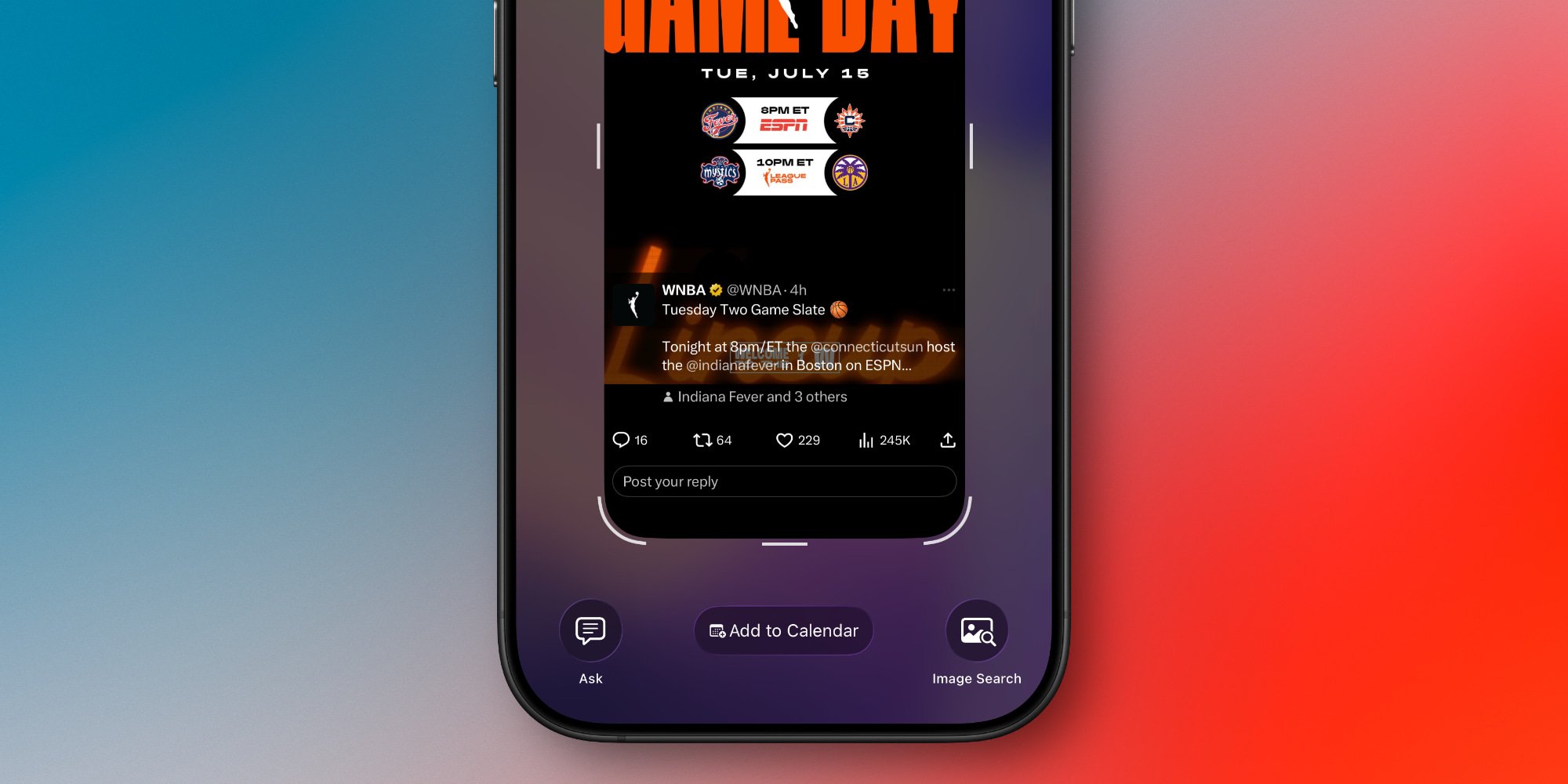
When you take a screenshot containing calendar event information—whether it's a flight confirmation, dinner reservation, or meeting invitation—iOS 26 automatically detects the relevant details and displays an 'Add to Calendar' button at the bottom of the screen. This button only appears within the fullscreen screenshot UI, so users who've switched back to thumbnail view will need to tap the thumbnail first to access it.
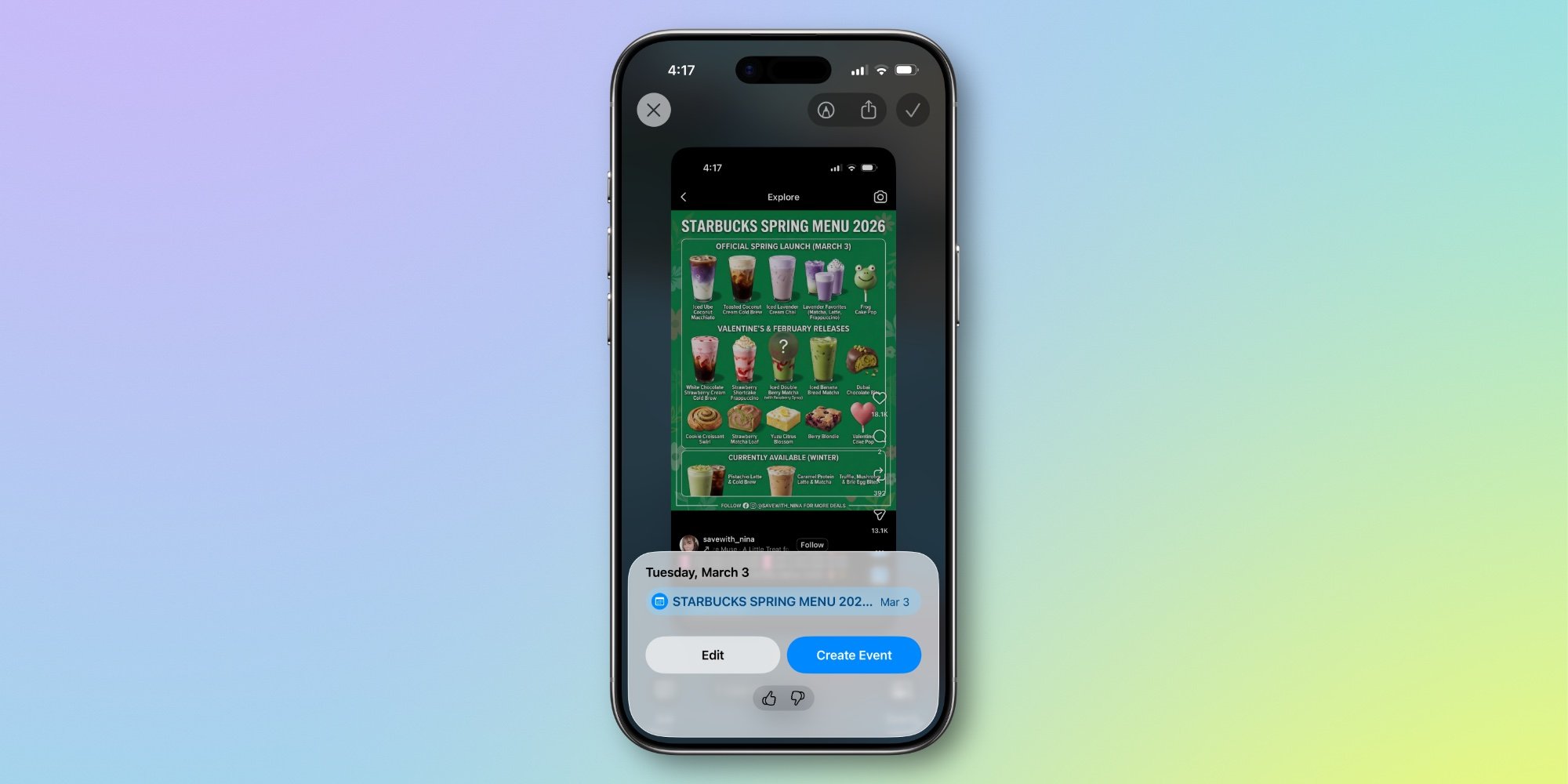
Once you tap 'Add to Calendar,' Apple Intelligence analyzes the screenshot and extracts the event details. You're then presented with a preview showing exactly what will be added to your calendar. If everything looks correct, hitting 'Create Event' finalizes the process. If you need to make adjustments—like changing which calendar the event belongs to or correcting a time—there's an 'Edit' button that opens the standard Calendar app event creation panel.
Why This Matters for Users
This feature represents a significant improvement in how we interact with calendar information. Instead of manually typing event details or copying and pasting information between apps, you can now capture event information in its natural context and have it automatically processed into a calendar entry.
The integration works particularly well for common scenarios like:
- Flight confirmations with dates, times, and locations
- Restaurant reservations with party size and timing
- Meeting invitations with participant details
- Event tickets with venue information
- Appointment confirmations
Third-Party Calendar Integration
Apple has designed this feature to work with third-party calendar services as well. By adding your calendar account credentials to iOS 26's Settings > Apps > Calendar > Calendar Accounts, you can potentially use the screenshot feature with non-Apple calendar apps. However, users should be aware that this could create data syncing conflicts depending on their specific calendar service and app combination.
The Competitive Advantage
This screenshot-to-calendar feature gives Apple's default Calendar app a unique advantage over third-party alternatives. While other calendar apps may offer sophisticated features, none currently provide this level of seamless integration with iOS's screenshot functionality. For many users, this convenience could be enough to keep them using Apple's default app, even if they've previously preferred alternatives.
The feature also demonstrates Apple's broader strategy of using visual intelligence to make everyday tasks more efficient. By recognizing and acting on information in screenshots, iOS 26 reduces friction in common workflows and makes the operating system feel more intelligent and responsive to user needs.
Real-World Usage
Early adopters of iOS 26 report that the feature works remarkably well for its intended purpose. The accuracy of Apple Intelligence in extracting event details is generally high, though users may still need to make occasional corrections, particularly for events with unusual formatting or ambiguous information.
The speed of the process—from screenshot to calendar event—is impressive, often taking just a few seconds. This efficiency makes it practical to use the feature throughout the day, whether you're booking travel, making dinner plans, or scheduling appointments.
Have you tried the new 'Add to Calendar' feature in iOS 26? The convenience it offers might just change how you think about managing your schedule on iPhone.
Comments
Please log in or register to join the discussion