
Microsoft Edge's Client Repeatable Feature blocks Autofill suggestions after five different values are entered into the same form field, a behavior unique to Edge that differs from Chrome's approach.
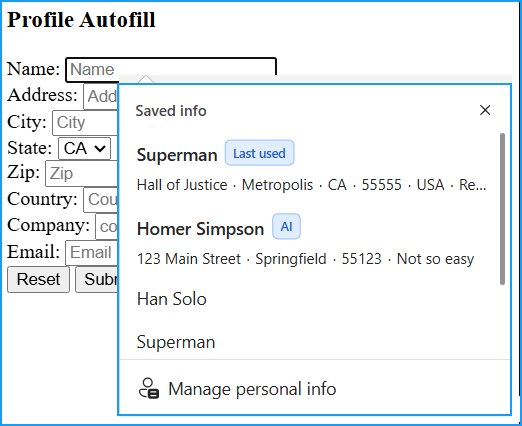
Autofill features in modern browsers are designed to save time by automatically filling in form fields with previously entered data. However, Microsoft Edge users sometimes encounter a puzzling behavior where Autofill suggestions suddenly stop appearing, even though the browser is still saving new entries. This article explains the mechanics behind this behavior, focusing on Edge's Client Repeatable Feature and how it differs from other Chromium-based browsers.
How Edge's Autofill System Works
At its core, Microsoft Edge uses a system called Frequently Saved Data (FSD) to manage Autofill suggestions. This system relies on something called the Parsable Name—a value that identifies what type of data a form field expects. When two input fields share the same Parsable Name, Edge treats them as equivalent and shows the same Autofill suggestions for both.
For example, if you have a field named "EmailAddress" on multiple websites, Edge will display the same email suggestions regardless of which site you're on. This cross-domain behavior is intentional and stems from the fact that FSD originates from the Chromium project, meaning it behaves identically in Chrome and other Chromium-based browsers.
The Client Repeatable Feature: Edge's Unique Behavior
The Client Repeatable Feature is where Edge diverges from its Chromium cousins. This Edge-specific feature monitors how many different values are entered into a single form field within the same form. When five different values are entered consecutively into the same field, the feature activates and blocks Autofill suggestions for that specific form.
This blocking is not permanent or global. Edge identifies forms using a hash value called Form SignatureV2, and the Autofill block applies only to the form with that specific signature. If you have another form on the same or different website with the same Parsable Name but a different Form SignatureV2, Autofill will continue to work there until it too triggers the five-value rule.
Unblocking Autofill Suggestions
When Autofill gets blocked, it's not the end of the road. To restore suggestions, you need to type one of the five previously entered values in full. Partial input won't work—you must enter the complete value that was previously saved. Once you do this, Autofill suggestions become visible again, and all values saved during the blocked period will appear.
It's important to note that unblocking only resets an internal counter. If you enter five new, different values consecutively again, the block will reactivate. This creates a cycle where Autofill can be temporarily disabled based on your input patterns.
Managing Autofill Data
If you want to completely clear Autofill data, including any entries affected by the Client Repeatable Feature, you can do so through Edge's settings. Navigate to edge://settings/privacy/clearBrowsingData, set the time range to "All time," enable "Autofill form data (includes forms and cards)," and click "Clear now." This removes all saved Autofill entries across all websites.
Debugging Autofill Behavior
For developers and power users, Edge provides tools to understand Autofill behavior better. By enabling the "Show Autofill Predictions" flag at edge://flags, you can hover over form fields to see their Parsable Name and Form SignatureV2 values. This makes it much easier to understand why suggestions appear or disappear.
You can also test Autofill behavior using the Autofill Smoke Test page at https://rsolomakhin.github.io/autofill/, which provides a controlled environment for experimentation.
Advanced Inspection
For those comfortable with technical debugging, Edge stores Autofill data in a SQLite database file named "Web Data" located at C:\Users\<username>\AppData\Local\Microsoft\Edge\User Data\<profilename>\Web Data. This file can be inspected using SQLite viewers like DB Browser for SQLite, allowing you to see exactly what data is being stored internally, even when Autofill suggestions are blocked.
Key Takeaways
Understanding the distinction between FSD (Chromium-based, cross-domain) and the Client Repeatable Feature (Edge-specific, form-scoped) explains many Autofill behaviors that might otherwise seem like bugs. The blocking behavior is temporary and counter-based, designed to reduce noisy or repetitive suggestions when a field is being used for multiple different purposes within the same form.
Once you understand these concepts, Autofill behavior in Edge becomes far more predictable and easier to debug. The system is working as designed—it's just that the design includes safeguards against suggesting irrelevant data when a form field is being used in unexpected ways.
Comments
Please log in or register to join the discussion